Introduction
This is not a guide on how to implement a specific use case, but rather a framework that will give you full control over zone activity. Many flows like turning on/off lights could be done much simpler. However, when my personal flows became more complex, I ran into a lot of caveats and quirks that caused me to rethink how I work with motion sensors. I came up with this system which allowed me to solve all the bugs I ran into and I would like to share it with all of you.
The problems
Zone Activity in Homey can be sensed by either a Presence Sensor based on mmWave technology, or a Motion Sensor based on PIR (Infrared) technology.
Issues with mmWave
mmWave presence sensors are very sensitive and accurate, but there are also some downsides that not always makes them the best option. They are generally slower than PIR sensors, They require more power and therefore need to be connected to a power source, and they are also way more expensive.
Issues with PIR
PIR sensors are cheap and fast but have one very specific drawback as well. Because they detect changes in heat, they rely on rather large movement by a relatively warmer object in order to sense motion. This means that when a person sits relatively still, the sensor cannot detect motion, even though the person is still present in the room. This is why presence does not equal motion. In order for a motion sensor to calculate presence whilst still keep battery usage low, it relies on parameters like sensor downtime, presence reset time and motion sensitivity level in order to give it enough time to sense new motion before it resets itself. However, for most motion sensors (including the Aqara P1), these values are configured per sensor and cannot be changed by flows. This creates a problem for rooms where people generally sit still for longer periods like the tv-area or the study. You can set the reset time very long, but this also means that the room will remain active for a very long time and there’s no way to make the room inactive using a flow. There were many situations where I wanted to set the room inactive, but couldn’t.
Issues with Luminance sensors
Another issue many motion sensors with built in luminance sensor have is that the luminance is updated independently from the motion activity, and the “when motion sensor becomes active” card is still triggered with the old luminance values. Also, the “when luminance changed” card is triggered immediately after but with a slight delay and only when the luminance actually changed. This means that if you want to create a flow that should run as soon as the zone became active, but also every time the luminance value changes while the zone is still active, you will run into race conditions and a lot of other problems.
The Solution
I was able to fix all my issues using a Virtual Motion Trigger from the Zone Activity app which gives my full control over zone activity. Instead of choosing a very long sensor reset time, I set the sensor reset time to 1s and use the motion sensor to set a Virtual Motion Trigger. The advantage of using a Virtual Motion Trigger is that I can use cards in my flows to enable/disable the motion trigger or to enable/disable the motion alarm. Another advantage is that I can use the “When Virtual Motion Alarm turned on” card to make sure that it is always triggered after the luminance of the actual motion sensor is updated. This way, the flow runs every time the motion trigger is turned on, but also every time luminance is updated and it always has the most up to date luminance value.
I can also disable the Virtual Motion Trigger altogether to instantly disable the entire flow.
Here is how I implemented it:
-
Add the motion sensor and adjust it’s reset time time to 1s (You can leave the sensor blind time to 30s, or make it longer)
-
create a virtual motion trigger in the same zone.
-
Create an advanced flow like such:


Breakdown of the flow
As you can see in the above example, I use this flow to dim the bedroom lights autonomously based on the luminance value of the motion sensor. If the luminance value is less than 65, I will dim the lights based on dim value calculated by a Circadian Zone. When the luminance becomes higher than 75, or the zone becomes inactive, I turn off the lights again.
Step 1 explained
Every time motion is detected, I first turn off the virtual motion alarm and then immediately turn on the motion alarm for a specific time (the sensor reset time of 1s on the motion sensor will make sure the zone remains active). The time that you pass to the “Turn on the alarm temporarily for” card is the equivalent of the sensor reset time. The advantage here is that the sensor reset time is not fixed, but a variable that can be changed by flows. This allows you to have different reset times for specific situations (for instance, a shorter time during the day, and a longer time in the evening).
In this case, the flow is run every time motion is detected, even if the zone is already active. I use this to update the flow on changed luminance values. If you only want to run the flow once when the zone becomes active, you can simply remove the “turn off the alarm” card. The “Turn on the alarm temporarily for” card will then still extend the reset time, but the “When the motion alarm turned on” will not trigger again in between.
Step 2 explained
By tying the rest of the flow to the “when the motion alarm turned on” card, the flow is running with the updated luminance value.
There are of course situations when you don’t want the lights to turn on automatically, so here’s the beauty of this setup. I can simply enable/disable the Virtual Motion Trigger from the devices list and the flow will be disabled completely. There are other ways to disable or enable flows like using a variable, or break the flow up in sub flows and disable the individual flows, but this way is easy to understand for everyone in the household.

You can turn the Virtual Motion Trigger on and of from a different flow. This is handy when you want to disable the flow when a person went to bed or make other automations.

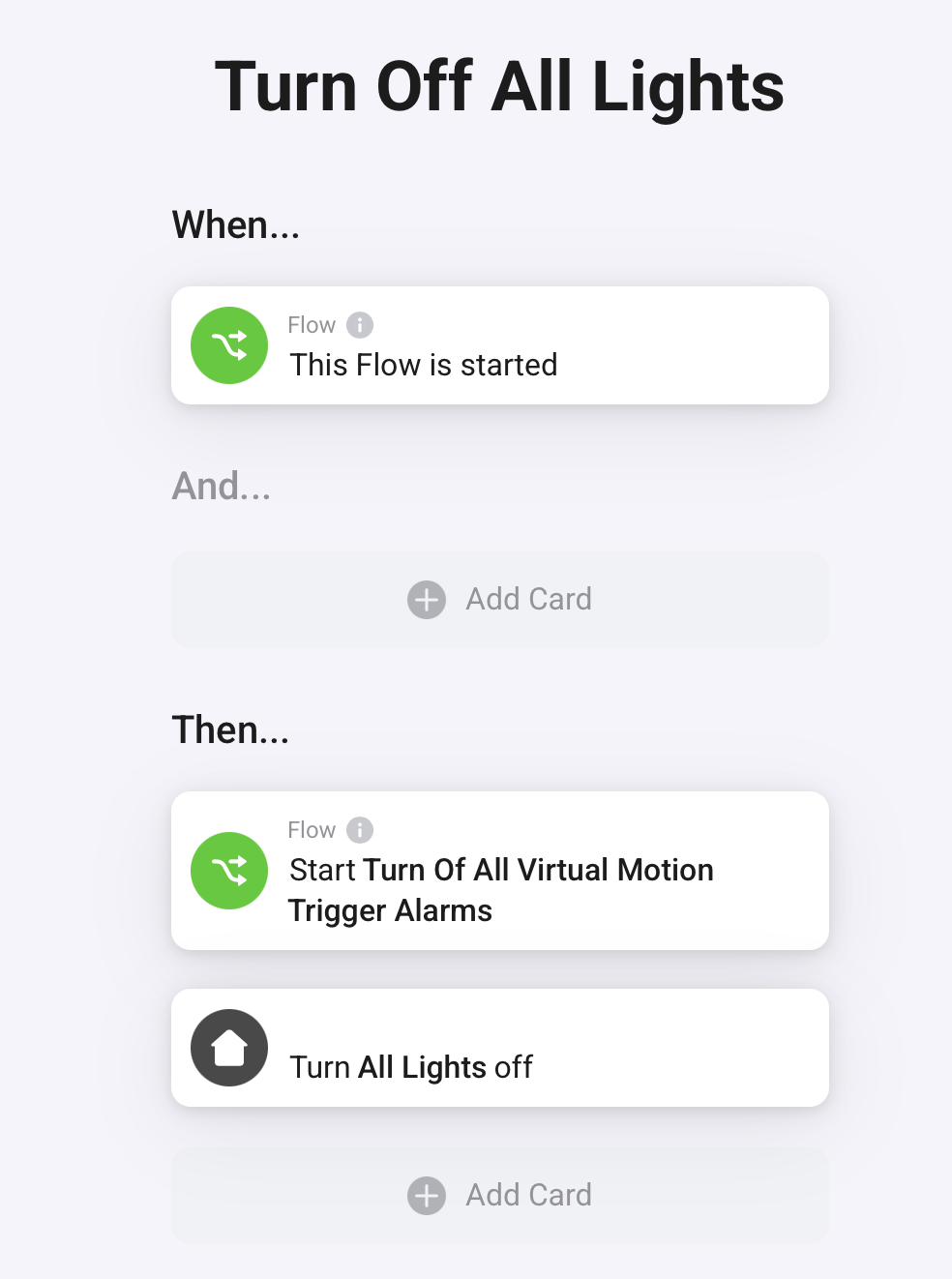
You can also make a simple task to turn of all lights and disable all motion triggers alarms. This is handy when you want to make sure that all rooms are inactive when the last person left the house.
Step 3 explained
I use the “when zone became inactive for 1s” card and the “and Virtual Motion Trigger is turned on” card because the zone will also immediately become inactive when you turn off the Virtual Motion Trigger. I disable the Virtual Motion Trigger when I want to disable the flow and turn into manual mode. This way I can make sure that the lights remain in their state when I disable the Virtual Motion Trigger.
Hopefully this tutorial will help some people with their advanced motion based flows.
 , I will try to implement it, because I had exactly the problems you described.