Anyone had any success “converting” a google-login? I tried creating a password to unlink google, but it just says “Please create your password first and try again” when I use the “set password” in settings or the “forgot password”-function.
Which google login, Tore? Homey or Tuya Smart app?
I think “converting” the account would be: create a new email based account, and login with that account.
Tuya - I created the account with Google login years ago.
I could as you say make a new, clean account and transfer the home..
Yeah I think that should be the way. Not sure how to move your Tuya home though.
I hope someone can help me with the following. I have Tuya-based dehumidifier (ProBreeze PB-20). I am trying to connect it to Homey, without success.
I have done the following:
- I followed the instructions in the first post, including setting up an account and project on the Tuya Developer Platform and linking my Smart Life account to the created project. This all works.
- I installed the Tuya Cloud app on Homey, and configured the app as per the instructions in the first post. Also this linkage works.
- I added the dehumidifier in the Smart Life app. I can also see the dehumidifier pop-up in the said project on the Tuya Developer Platform.
Next I tried to add the dehumidifier to Homey. Based on my understanding dehumidifiers are supported by default; the app has a dedicated driver for such devices. I select Add new device > Tuya Cloud > Dehumidifiers. The Tuya Cloud app shows a list of available devices. My dehumidifier is included:

After completing the new device wizard, the device is added:

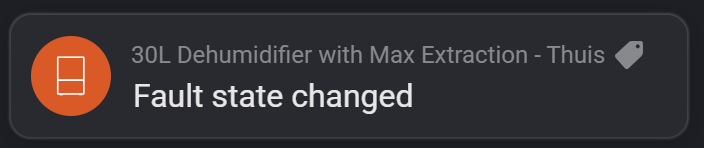
However, the device does not include any controls/buttons nor any sensors. The only sensor is called ‘Fault’ with no value. Also the only flow card available is a WHEN card named ‘Fault state changed’:
The advanced settings of the device does contain some settings related to my dehumidifier:

I am not sure what this means. Is my dehumidifier not supported by default (and hence I have to use the raw commands/tap-to-run options)? I assume that if a device is not supported, you cannot add it. Since my device is found and added, I assume it is supported. However I don’t know what I am missing/how to get it up and running.
Well, Tuya unfortunately “do as they please” regarding device ID’s and firmware, so it’s very well possible some things work, and some things don’t, for your particular dehumidifier.
I think you should carry on using the tap-to-run (send commands) and/or RAW commands (receive data/commands & send commands) workarounds. That should provide you with all controls & measurements.
I think you are right. I did some further digging. And learned something I was not aware of / which was not mentioned in the instruction in order to get raw commands to work. The TLDR is that I had to change the instruction set/mode applied to my dehumidifier in the Tuya Development Platform in order to get raw commands to work.
Initially the raw command option did not seem to work. Using your instructions on how to intercept the command messages, Homey seemed to only receive a few functions/properties, which were the same as in the device that did not work (e.g. the Fault property).
I learned that the IoT Core API apparently can use two different instruction modes:
- Standard Instruction mode;
- DP Instruction mode.
By default my device was set to the Standard Instruction mode. The active instruction mode is indicated on the device tile in the Device overview in the project:

You can actually see what the instructions (or functions or properties, if you will) are which are supported by each instruction mode, by clicking the eye icon in the device’s tile:

A panel opens that shows the instructions in Standard Instruction mode and also the available ones in the DP Instruction mode:
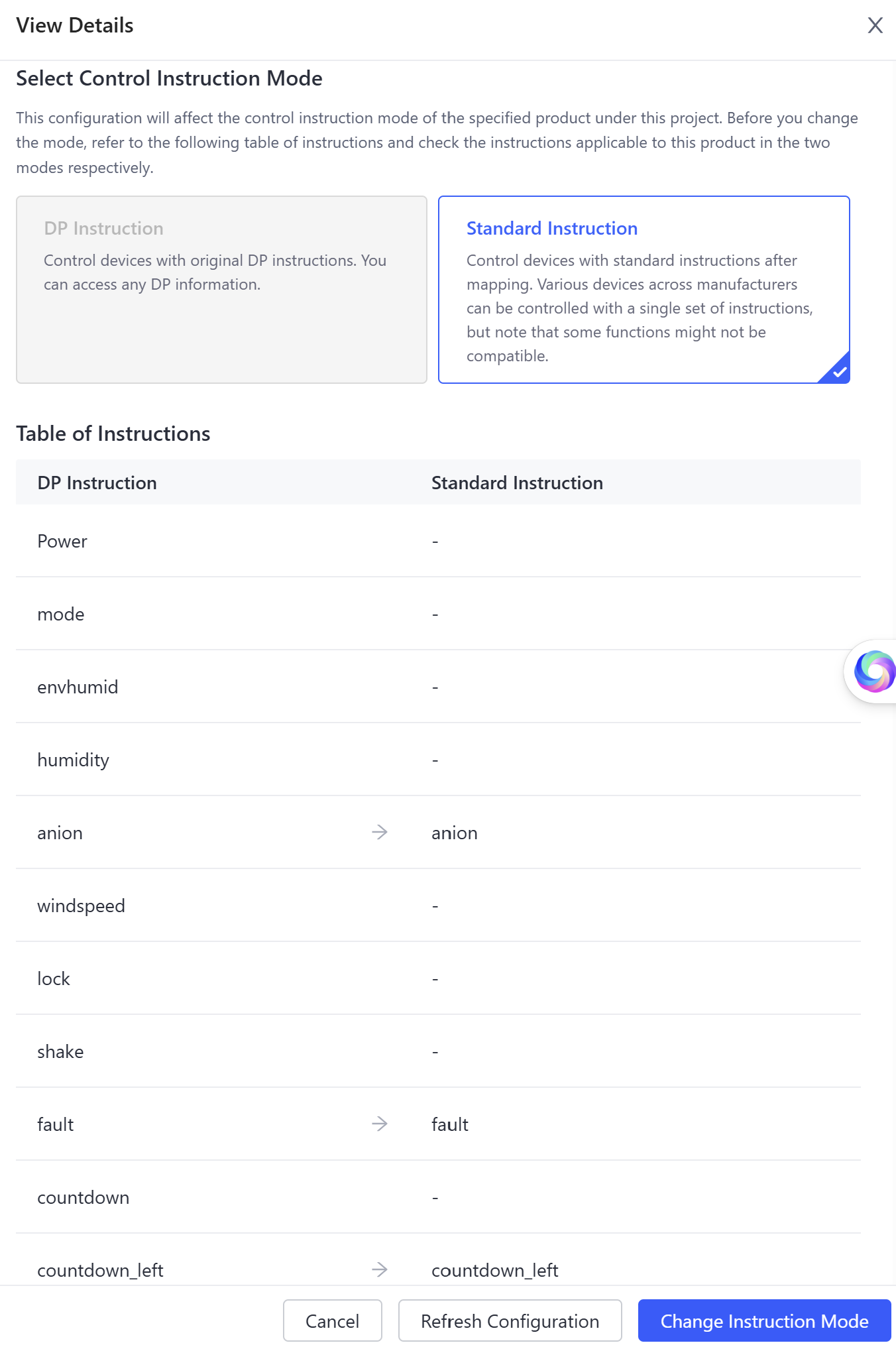
In my case only a few instructions of the ones actually available in the DP Instruction set were exposed/mapped to the standard set (right hand side of the image).
You can change the applied instruction mode via either the Change Instruction Mode button in the above panel or via the pen icon in the device tile mentioned earlier:

After changing the mode, the device tile now shows that the DP Instruction mode is active. Going back to the instruction panel again (via the eye icon on the device tile), now indicates that all available instructions are available for controlling the device. All DP Instructions are now mapped to a Standard Instruction:
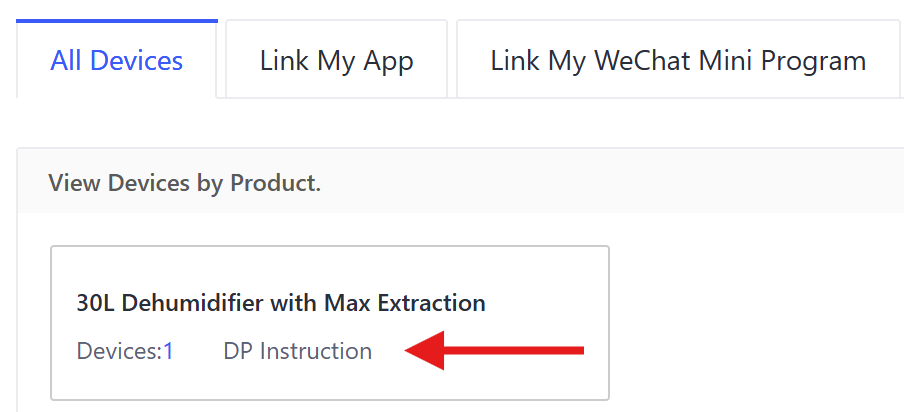

The nice thing about this overview is that you don’t have to determine which instructions are available for your device, by intercepting them via the ‘Text message received’ WHEN card in Homey. Instead, the available instructions are listed in the above mentioned panel.
Also the Tuya Development Platform contains further information on those instructions, like the data type and allowed/expected values:
- Goto Cloud > API Explorer > Select IoT Core in the navigation pane > Device Control (Standard Instruction Set) > Get the specification and properties of a device. Enter the Device ID and click the Submit Request button. then you get an JSON overview of the instructions and status properties, data types and expected values.
- Alternatively: Goto Cloud > API Explorer > Select IoT Core in the navigation pane > Device Control > Query Properties. Enter the Device ID and click the Submit Request button. then you get an JSON overview of the properties, data type and their last value.
- Tuya documentation on Standard Instruction sets per device type/category. This documentation also includes the possible values of each instruction.
These resources might help in figuring out the syntax of raw commands.
What crossed my mind: When you’ve activated “DP instructions”, is your previous added dehumidifier device having more sensors and buttons available?
Maybe after removing and adding again?
Fair question. I actually tried that. I removed the prior device, restarted the Tuya Cloud app and re-added the device. The device contained one extra capability: a list to select an operating mode. Most modes were not relevant for my device. Also changing a mode did not trigger anything. Basic controls like on/off, the humidity percentage and fan speed were not available.


I’m not sure if it’s a native supported device, Willem. What device did you select to install?
But, by using the RAW Commands workaround you can get it"s data to Homey.
I’ve tried both CO-sensor and smoke-detector. Unfortunately neither of these give me results. Who can I contact to add the AJ-662 as a device?
I am planning to install 10 of these in my hotel so it would be nice to have them in the homey dashboard.
I don;t know if I am willing to go the RAW commands way and spend my precious time on that 
A person who can and wants to write code for you. Please read post # 1 of this topic.
.
So for an other person it is okay to spend their precious time on you? Funny attitude.
.
Like Sunbeech just explained, all device related RAW commands are mentioned @ Tuya iot developer site, which makes “discovering” the command ID’s a bit easier.
.
I’d never ever install any Tuya product in my hotel, especially not health/safety stuff.
But we all have different views on being “smart”.
Peter what a biased reply, and none of my questions answered.
- I did read post #1 several times. Still didn’t answer my question what community member is willing to help me out.
- The whole app-community relies on people (with programming skills) to spend their precious time on developing (either volunteered or community driven). As I am not a programmer or developer, it will take me hundreds of hours to even start developing, while there are community based apps.
- As I am not a developer RAW commands are way above my knowledge. I use homey for its friendly user interface. I was just wondering if someone in the community is working on adding my type of smoke-detector.
- You would never install them , well I do.
For some context:
My hotel is equipped with official and certified fire alarm systems. All rooms have smoke detectors that are connected to a professional alarm system and an off site control room. Whenever there is a fire the evacuation alarm will sound and all rooms will be evacuated and fire department is notified. (as required by local government).
In my business I once in a while get guests that ignore rules and do smoke cigarettes in their hotel room. Only to be found out by housekeeping in the morning when entering the room when the guests might already have left.
This results in a lot of damage; Rooms need to be ventilated, curtains need to be washed, carpets needs to be deep cleaned.
(Depending on the amount of cigarettes smoked the costs to clean out rooms can go up very high. Some times it takes 3 days to get the smell cleared out. Room cannot be rented out during these days that the curtains are at the dry cleaner)
I am planning to install these (Tuya) detectors because they pick up cigarette/vape ‘smoke’ very accurate.
When cigarette smoke is detected I want the particular detector to give an alarm in that particular room. So I can react quickly to guests smoking and don’t get to notice the behavior when the guests checks out. And not to evacuate the whole building and have a fire truck being send by the off site control room.
So far so good when I use the Tuya app. These detectors are very keen on cigarettes and vapes.
But the Tuya app is only installed on my own phone -not on employees- so when I am vacationing, or in the cinema, or whatever other reason my phone is silenced -and my business runs 24/7/265. I could miss the alarm and my employees are not notified.
I do have a homey-dashboard installed so employees can see stuff like the front door camera, movement in the backyard, the status of all air-conditioners in the room etc etc.
So adding the (alarm) status of all the cigarette detectors to the homey dashboard would be very helpful. In that case the info will be available to whoever is on duty without having to install the Tuya app on everybody’s phone.
In the future I image myself creating flows to activate power-full fan status of the airconditioner in the particular room.
PS: Having my device as a ‘native’ device in homey would also give me a valuable view in homeys insights. This particular detector gives an overview of the amount of smoke particles present in the room.
The insights graph would be a nice piece of evidence to show guests when they argue that there was already smoked
I can imagine that ‘RAW commands’ sound very ‘nerdy’ and technically complex.
Just to give you an idea of how such a raw command looks like.
I have a dehumidifier that I control via those raw commands. Each button / sensor on the dehumidifier has a corresponding raw command to activate or read out the status. For this purpose the Tuya Cloud app provides dedicated flow cards.
As an example turning on and off the device. The raw command that tiggers the power switch is called ‘Power’, in this case. The switch can ether be turned on (true) or off (false). Those are the basic elements.
- The first flow card turns on the device: it sends the Power command together with the ‘true’ (‘waar’ in the Dutch screenshot) state to the device.
- The second flow card turns off the device: it sends the Power command together with the ‘false’ (‘niet’) state to the device.
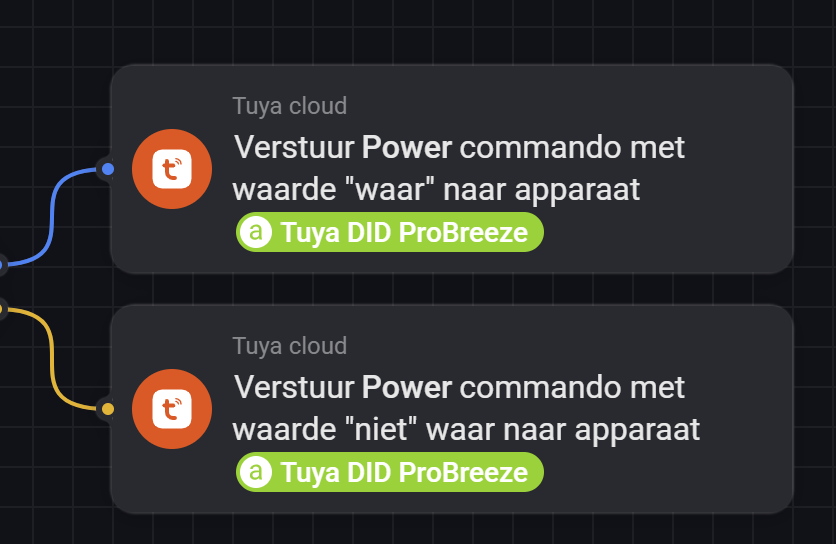
Setting up such flows and (ideally) also setting up a virtual device (which also enables you to create insights) or dashboard that controls those flow via buttons, does of course require more time compared to a fully supported device. However it does enable you to use and control the device with Homey, which would otherwise not have been possible, when no support for it is available.
I’ve got all my devices (lights in my case) from Hoftronic up and running in the Tuya app. I’ve also been able to get them in de Homey app (thanks for the help in the community), but then the strange part starts… I’m not able to control every device. For example, the lights in the kitchen switch on and off as I’d like to, but in the bathroom I can only control 3 of 5 lights. And in the entrance 5 out of 6.
I do see the devices in the app, but they don’t react on any command from the app.
Can anyone help me?
When they don’t respond as “supported device", you can use the workarounds called tap-to-run scenes and/or RAW commands.
All’s described @ post 1 of Tuya Cloud app topic
Thanks for this great app! I managed to add my IR remote from Ali into the Tuya app and control them with scenes from Tuya app in homey. One question, i see that the IR remote not always plays the homey scene as in from 10 times it works like 8 or 9. It’s fine but for example my airco is upstairs, is there a way or line or something the IT remote can provide current airco status to me in homey? So when I put it on I can check in some sort of status it’s actually on and the flow worked and when I put it off the same?
The best way, imho, is connect the airco mains to a Homey compatible wall plug with power measuring.
You can monitor it’s state by the amount of power the plug reports to Homey.
Ye thanks for that idea could have worked yes! but the airco’s aren’t plugged into a socket and are installed cable wise behind the wall
