You can create an Advanced Virtual Device (AVD) via the Device Capabilities app and add the running timer counter to it:
Only with the new homey firmware there seemed to be an issue with intervals. The cards you are working are working correctly, even of homey would reboot.
Yes.
Yes, you can create a chronograph device so ot shows its value on the dashboard.
Or create an Advanced Virtual Device from the Device Capabilities app for more options.
OK, when I am finished with the Chronograph’s flow’s water irrigation, I wil try the EVD Timer Capability app. Thank you SunBeech.
Great to hear that Chronograph now reliable. I was thinking to make flow’s with Chronograph timer and time delay option (in case Chronograph not working) Thank you Arie.
I learned something new today  . I did not know that you could also create timer/stopwatch/transition devices in the Chronograph app.
If I create a new timer device for an existing timer, in the mobile app on my iPad, I get the following error during the last step. Strangely, the device is added and I can open it. Any idea what’s causing it? Note that the timer I was adding was not running at that point.

It seems, that the current TestFlight Homey iPadOS App version v9.3.0 (1771) is buggy. The same error massage occurs, if you want to add or delete devices from the new “Group” feature for lights and curtains. Please check this Slack link.
So I guess it’s not related to the Chronograph app.
Ah okay. Thanks. I am using the live version from the App Store, by the way. Though it is the exact same version and build as the Test Flight version you are referring to.
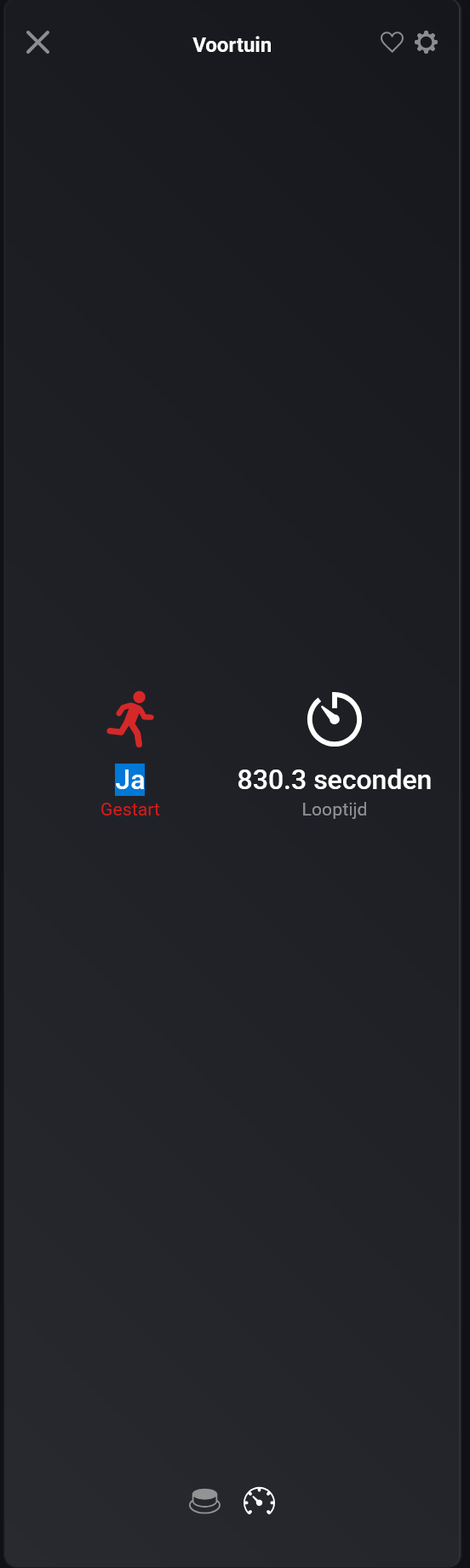
Chronograph device or AVD device
You can either show the timer value available in the Chronograph device (of which you posted a screenshot) or create an AVD with the timer value and show that on your dashboard. The AVD provides options to format the timer value. E.g. instead of 830 seconds, you can display it as 13:57. Whichever option you choose, the way to display then value on the dashboard is the same.
Creating an AVD device with timer value
This is done in a similar way to adding a “real” device. Click on the + > New Device and then:
- Click on the Device Capabilities app;
- Choose Advanced Virtual Device > Install;
- Create a blank AVD;
- Specify a name for the virtual device and choose an icon and click Save and Use and complete (or skip) Homey’s follow-up questions.
If all goes well, the virtual device has been added.
Now set up the new device: Open the tile > Click the cog (settings) > Choose Maintenance > Try to fix.
You now enter the virtual device’s settings screen, where you define your own sensors. In this example, you create a Text field that displays the timer.

- Provide a name and select an icon;
- At Reflect choose the Chronograph app. By doing this you indicate that the field is based on a Chronograph timer/stopwatch as a basis;
- Next select the timer that you created earlier and the property that you want to display (e.g. remaining duration);
- Optionally you can format the value. The example in the screenshot formats the raw value (which is in milliseconds) in mm:ss format;
- Click Save device.
Close the Maintenance screen and if all goes well, your virtual device now has a sensor: the timer value.
Adding timer to your dashboard
In your dashboard add a Sensors widget:

In the configuration screen of this widget, select your Chronograph or AVD device and the included timer sensor/value:

Click Add widget. The result should be something like this:

EDIT - The ‘time’ formatting function, used in th AVD, is provided by the Better Logic Library app (BLL, hence the label BLL expression). As such, you need to install the BLL app in order for the function to work.


In your image, the bll expression is not correct, you are missing a , and )
Indeed. @Franklin_Marlin, it needs to be: time('mm:ss', $value).
Any guidance on how to delete or rename existing timers?
Stop using them in any flow and they will be removed.
Renaming is the same thing; rename and save, then select or rename on all other places. Renaming in one flow will not rename in other flows.
Thank you!
This morning I uploaded the wrong picture
I see now what I put wrong : time(‘mm:ss’, $value) after the come ( komma ) is a space. I put this information without a space. I will try this evening.

Is the timer actually running?
If so, when you open de Advanced Virtual Device (so not the dashboard, but the AVD tile itself), do you see the timer counting down on the sensors tab?
