User guide — how to use the ChargeAmps app (v5.4.8)
Companion to the opening post above. This guide walks through the whole app — device screen, settings, widget, Homey Energy, Flow, and troubleshooting.
Contents
A. Core concepts
B. Setup & account
C. Device screen — full walkthrough
D. Charging control — CAPI vs OCPP
E. OCPP RFID & Start/Stop
F. Electricity price & session cost
G. Charge targets
H. Homey Energy & smart charging
I. Dashboard widget
J. Flow — complete cookbook
K. Model guides
L. Notifications & Insights
M. Maintenance & diagnostics
N. FAQ
O. Troubleshooting
A. Core concepts (read this first)
A1. Where can I control the charger?
| Place |
Best for |
Controls |
| Device screen |
Full overview, all toggles |
Port, locks, LED, current, identify, power mode |
| Energy tab |
Homey Energy / EV view |
Start/Stop, target power, charging state |
| Dashboard widget |
Quick daily use |
Start/Stop, current slider, targets, HALO extras |
| Flow |
Automation |
Everything + price, conditions, notifications |
| Device icon tap |
One-tap shortcut |
Configurable: open / start-stop / port (Guide L2) |
All paths talk to the same charger — pick what fits your routine.
A2. Three different “energy” numbers
Users often confuse these — they are intentionally different:
| What you see |
Meaning |
Resets? |
| Session kWh (Now charged) |
Energy delivered this charging session |
Yes, each new session |
| meter_power (Energy meter) |
Total cumulative kWh for Homey Energy |
No — lifetime total on device |
| Today / Week / Month / Year |
Sum of completed sessions in that period |
Rolls with calendar |
The meter is reconciled against the charger when a session ends so it matches ChargeAmps closely.
A3. Charger status words
| Status |
Plain English |
| Available |
Port enabled, no car (or not detected) |
| Connected |
Car plugged in, not charging yet |
| Preparing |
Negotiating with the car |
| Charging |
Delivering power |
| SuspendedEV |
Paused — car suspended (e.g. battery full, car timer) |
| SuspendedEVSE |
Paused — charger suspended (schedule, limit, command) |
| Finishing |
Session ending, cable still connected |
| Error / Faulted |
Charger reports a fault |
A4. CAPI or OCPP?
Check Device settings → Diagnostics → Protocol.
|
CAPI |
OCPP |
| Port On/Off |
Enables/disables port |
Enables/disables port |
| Start/Stop |
Same as port On/Off |
Start/Stop charging session |
| RFID settings in device settings |
Not needed for basic use |
Relevant for Start/Stop (Guide E) |
| Car connected detection |
Usually reliable |
Can be more limited |
B. Setup & account
B1. First charger — step by step
- Get API key (24 chars) from ChargeAmps support
- Homey → Devices → + → ChargeAmps
- Pick model: AURA / DAWN / HALO / LUNA
- Enter email, password, API key on the login screen
- Select your charge point from the list
- Open device → confirm Diagnostics → Last contact updates
AURA shared charger: before using, set Device settings → Port you have access to → Outlet 1, 2, or Both.
B2. Add another charger
Repeat pairing for each physical unit. The app uses one shared login for all chargers — you do not enter credentials per device.
In Flow, always pick the specific charger in each card’s device picker (important if you own two HALOs, etc.).
B3. Change password or API key (Repair)
Credentials are not in app settings — they are updated per device:
- Homey → Devices → your charger → ⋯ → Repair
- Login screen: email is prefilled; enter new password and/or new API key
- Leave password/API key empty to keep the saved value
- Complete repair
Do this once per charger model driver if you have several (repair any device re-validates the shared login).
B4. Read-only account
If your ChargeAmps account is read-only for a charger (e.g. shared access), the app shows Read-only account (control blocked). You can still monitor status and energy; writes (on/off, start/stop, current) return 403 and are blocked.
C. Device screen
- Port On/Off (
onoff) — long-term enable/disable of the connector
- Start/Stop (
evcharger_charging) — session control (OCPP) or same as port (CAPI)
- RFID lock — require authorisation on the charger
- Cable lock — DAWN, LUNA, AURA (not HALO)
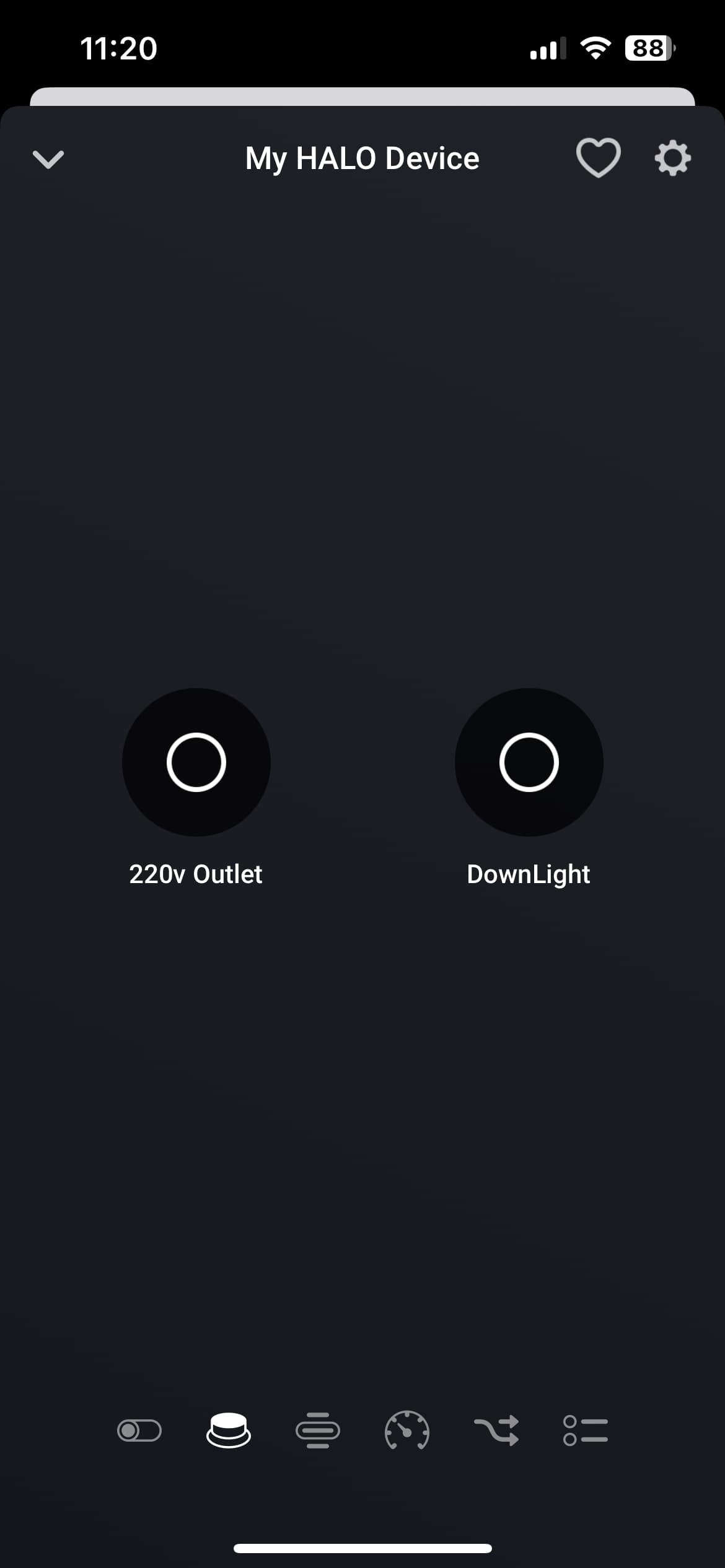
- 220 V outlet — (HALO) hidden automatically if your HALO has no Schuko outlet
- Ground light - (HALO)
- LED ring — Off / Low / Medium / High
- Power control — Homey vs ChargeAmps app (Guide H)
- Car connected — derived from status (see A3)
- Power — live kW (AURA: per-outlet + combined)
- Energy — cumulative kWh (Homey Energy main meter)
- Charging state — human-readable EV state for Homey Energy
- 220 V Status - Status of the 220V outlet
- Status — connector status from cloud
- Now charged / Last charged — session kWh (graph in Insights)
- Current limit — slider in ampere; schedule mode preserved when changed
- Ground light Status - Status of the Ground Light
- RFID Status - Status of the RFID
- Charged Today — period totals
- Charged This Week — period totals
- Charged This Month — period totals
- Charged This Year — period totals
- Electricity price tile — price currently in effect (manual or dynamic)
- Current and Voltage L1 / L2 / L3
Maintenance
- Identify — slow LED pulse to find the unit (disabled while running / if offline)
- Reboot — cloud reboot of the charger (use rarely)
D. Charging control — CAPI vs OCPP
D1. CAPI — simple daily use
You only need Port On/Off (or Start/Stop — same thing).
Example — evening charge:
- Plug in car
- Turn port On (device, widget, or Flow)
- Turn port Off when done
D2. OCPP — port vs session
Think of the port as the gate, and the session as whether power flows now.
Port OFF → nobody can charge (gate closed)
Port ON → charging allowed, but may not start until session starts or plug-and-charge
Start → begin delivering energy (remote start)
Stop → pause energy; port can stay ON
Workflow A — plug-and-charge:
- Port On, RFID lock Off
- Plug in car — car normally starts to charging
Workflow B — controlled start of charging:
- Port On, RFID lock On
- Plug in car — car should not start charging
- Use Start to initiate charging
D3. Quick decision — “which button should I use?”
| I want to… |
CAPI |
OCPP |
| Start charging now |
Port On |
Start (or port On + plug-and-charge) |
| Stop charging now |
Port Off |
Stop |
| Disable charger for days |
Port Off |
Port Off |
| Pause 1 hour, same car plugged in |
Port Off (restart later) |
Stop, then Start later |
E. OCPP (RFID) & Start/Stop (experimental)
OCPP session Start/Stop is experimental — not verified on all ChargeAmps firmware. Please report results in this thread.
Two settings under Device settings:
E1. RFID for start/stop charging (OCPP)
Tag is sent with Start charging (required according to ChargeAmps documentation).
Setup your RFID tag:
- Goto ChargeAmps user portal → Profile → RFID Tags
- Register your tag (8 character HEX value (Only 0-9 and A-F allowed)
- Enter a name for the tag
- Press ‘Update’
- In Homey in your ChargeAmps device settings enter the same HEX value in ‘RFID for start/stop of charging (OCPP)’
- Press ‘Save’
If you don’t setup your own Tag the App will try to use a built-in default tag, but this has not been confirmed that it works.
E2. Enable RFID lock for session start/stop (OCPP)
Default: ON
|
RFID lock ON (default) |
RFID lock OFF |
| On Start |
Enables RFID lock, then remote start |
Remote start only |
| On Stop |
Remote stop; turns RFID lock off unless you had it on before |
Remote stop only |
| Remote start tag (E1) |
Still sent |
Still sent |
E3. Test matrix (please post results)
Try in order; note pass/fail for each:
| Step |
Action |
| 1 |
Port On, car plugged, RFID lock setting ON → Start from Energy tab |
| 2 |
Stop |
| 3 |
Repeat with RFID lock setting OFF |
| 4 |
If still failing: enter your portal RFID tag in E1, repeat 1–3 |
| 5 |
If still failing: clear E1 (default tag), repeat |
Include in your post: model, firmware, protocol, custom vs default RFID, how you triggered (Energy / widget / Flow).
E4. RFID lock on device panel ≠ remote start RFID
|
RFID lock toggle (device / Flow) |
RFID for start/stop (setting E1) |
| Purpose |
Block plug-and-charge on charger |
Authorise remote start API call |
| Controlled by |
You manually, or session logic (E2) |
Only sent during Start |
F. Electricity price & session cost
F1. Manual fixed price
Device settings → Electricity price (per kWh) → e.g. 1.250
Set to 0 to hide cost features.
F2. Where cost appears
- Widget Cost column (while charging)
- Device Electricity price tile (active price)
- Flow Charging has completed → Cost token
- Charge target by money (Guide G)
F3. Dynamic price — basic Flow
WHEN [Price app] → Price changed
THEN ChargeAmps → Set price per kWh
   Device: \[your charger\]

   Price: \[price token from trigger\]
Works with Tibber, Power by the Hour, or any app exposing a numeric price token.
F4. Timebased price — day/night tariffs (no price app)
WHEN Time → 22:00
THEN ChargeAmps → Set price per kWh → 0.89
WHEN Time → 06:00
THEN ChargeAmps → Set price per kWh → 1.45
F5. Dynamic price — only charge when cheap
WHEN Tibber → Price below 0.75
AND ChargeAmps → Car is connected
THEN ChargeAmps → Turn on Charging
Pair with a stop when expensive Flow (see J).
F6. How dynamic cost is calculated
Cost accrues per poll using the price in effect at that moment — so a long session across cheap and expensive hours is costed correctly (not “average price × total kWh”).
Manual setting is fallback when no dynamic update has been received.
G. Charge targets
Stop automatically when a limit is reached.
G1. Types
| Type |
Flow card |
Stops when |
Needs price? |
| Energy |
Charge X kWh, then stop |
Session kWh ≥ X |
No |
| Time |
Charge for X hours, then stop |
Timer elapsed |
No |
| Money |
Charge for X amount, then stop |
Session cost ≥ X |
Yes |
Also: Cancel the charge target — removes pending target; charging continues.
G2. From the widget
While charging (non-compact widget):
- +1h / +2h / +4h — sets a time target
- ✕ — cancel target
- Progress bar shows target progress
G3. Behaviour details
- Starting a target starts charging if not already active
- kWh target cancelled on car disconnect
- Time target cancelled when session ends
- OCPP: target reached → session stop (port stays on)
- CAPI: target reached → port off
G4. Example — “charge 40 kWh overnight”
WHEN Time → 23:00
AND ChargeAmps → Car is connected
THEN ChargeAmps → Charge 40 kWh, then stop charging
G5. Example — “max €5 per session”
Requires price (Guide F).
WHEN ChargeAmps → Car connected
THEN ChargeAmps → Set price per kWh → [from your price Flow]
AND ChargeAmps → Charge for 5, then stop charging
(Combine in one Flow or rely on price already being set.)
H. Homey Energy & smart charging
H1. Add charger to Homey Energy
After pairing, the charger appears as an EV charger. No extra setup needed.
Requires Homey 12.13.0+ for full target-power support.
H2. Power control — who limits kW?
Device → Power control (or Flowcard):
| Mode |
Label in app |
Meaning |
| device |
ChargeAmps app |
Max power follows ChargeAmps App settings (schedule, limits). Homey target power slider disabled. |
| homey |
Homey |
Homey can set target charging power (W). |
Use ChargeAmps app if you schedule in the ChargeAmps mobile app.
Use Homey if you automate power from solar, fuse load, or Homey Energy logic.
H3. Target charging power
When Power control = Homey:
- Adjust target power slider on device or Energy tab
- Homey scales charging power toward that cap (uses measured line voltage)
Setting target to 0 effectively stops charging (session stop path on OCPP).
H4. Smart charging is not automatic
Homey provides data and controls. You build the automation in Flow — e.g. solar surplus, cheap hours, fuse protection.
H5. Example — reduce power when house load is high
(Conceptual — wire to your energy meter / Homey Energy logic.)
WHEN [Home power] rises above 11 kW
AND ChargeAmps → Car is charging
AND Power control = Homey
THEN Set target charging power → 3700 W (≈16 A single phase)
H6. Schedule mode (ChargeAmps app)
If the charger is in Schedule mode (ChargeAmps app scheduling), a Flow condition Charger is in schedule mode is available.
The app preserves schedule mode when you change current, RFID lock, or cable lock from Homey.
I. Dashboard widget
I1. Add widget
Homey dashboard → + → EV charger status → pick Charger in widget settings.
I2. Widget settings
| Setting |
Effect |
| Charger |
Which device to show |
| Compact (hide statistics) |
Small widget: status + kW + session kWh + Start/Stop only (~150 px tall) |
I3. Full widget layout
| Area |
Content |
| Header |
Status dot (green=charging, blue=connected, orange=paused, red=fault) |
| Metrics |
kW, session kWh, cost (if price set), Start/Stop button |
| Sparkline |
Recent power history while charging |
| Phase bars |
L1/L2/L3 load vs installation current |
| Current slider |
6 A – installation max (clamped to your charger) |
| Charge target |
+1h / +2h / +4h chips |
| HALO row |
230 V outlet + ground light |
| Footer stats |
Today / week / month / year kWh |
| Last session |
Summary line from previous session |
I4. Warnings in widget
Same soft warnings as device: offline, stale data, read-only, incomplete totals.
I5. AURA on widget
May show per-port session breakdown when both outlets are active.
J. Flow — complete cookbook
Browse cards: Flow → + → ChargeAmps → [your device].
J1. Trigger cards (WHEN)
| Trigger |
Fires when |
| Car connected / disconnected |
Plug in / unplug |
| Charging starts |
Status → charging |
| Charging has completed |
Session ends — tokens: energy, duration, minutes, rfid, cost |
| RFID switched on / off |
RFID lock changed |
| Cable lock switched on / off |
Cable lock changed |
| Car suspended charging |
SuspendedEV |
| Charger suspended charging |
SuspendedEVSE |
| Charger reported an error |
Fault status |
| HALO: Outlet switched on / off |
220 V outlet |
| AURA: Separate cards for charger 1 and charger 2 |
Per outlet |
J2. Condition cards (AND)
| Condition |
Use for |
| Car is connected / disconnected |
Gate automations |
| Car is / is not charging |
|
| RFID is on / off |
|
| Cable lock is on / off |
HALO: ground light / outlet on/off |
| A charge target is active |
|
| Charger is in schedule mode |
|
| A completed session is remembered |
|
| Last session was at least X kWh |
e.g. “did we charge enough?” |
J3. Action cards (THEN)
| Action |
Notes |
| Turn on/off Charging |
Start/Stop session (OCPP) or port (CAPI) |
| Turn charger on/off |
Port enable (AURA: per charger 1/2) |
| Turn on/off RFID, cable lock |
|
| Set max current (A) |
DAWN typically 6–16; HALO/LUNA/AURA up to installation limit |
| Change LED ring |
Off/Low/Medium/High |
| Set price per kWh |
Dynamic pricing |
| Charge X kWh / X hours / X money, then stop |
Targets |
| Cancel charge target |
|
| HALO: Outlet / ground light on/off |
|
J4. Recipe — charge complete notification
WHEN ChargeAmps → Charging has completed
THEN Notifications → Send notification
Message: {{energy}} kWh in {{duration}} — cost {{cost}}
Enable Timeline notification when charging completes in device settings for a built-in version without Flow.
J5. Recipe — cheap hours only (Tibber)
FLOW A — update price
WHEN Tibber → Price changed
THEN ChargeAmps → Set price per kWh → [token]
FLOW B — start cheap
WHEN Tibber → Price below 0.80
AND ChargeAmps → Car is connected
AND ChargeAmps → Car is not charging
THEN ChargeAmps → Turn on Charging
FLOW C — stop expensive
WHEN Tibber → Price above 1.50
AND ChargeAmps → Car is charging
THEN ChargeAmps → Turn off Charging
J6. Recipe — solar surplus (Power control = Homey)
WHEN [Solar / Homey Energy] → Export power above 1500 W
AND ChargeAmps → Car is connected
THEN ChargeAmps → Turn on Charging
Set target charging power → \[available surplus W\]
WHEN Export below 500 W
AND Car is charging
THEN Turn off Charging (or lower target power)
Tune thresholds for your installation.
J7. Recipe — charge only when door is closed (example)
WHEN [Garage door] → Closed
AND ChargeAmps → Car is connected
THEN ChargeAmps → Turn charger on
ChargeAmps → Turn on Charging
J8. Recipe — away mode (security)
WHEN [Alarm / Away mode] → Activated
THEN ChargeAmps → Turn off Charging
   ChargeAmps → Turn charger off

   ChargeAmps → Turn on RFID
J9. Recipe — cable lock while charging
WHEN ChargeAmps → Charging starts
THEN ChargeAmps → Turn on cable lock
WHEN ChargeAmps → Charging has completed
THEN ChargeAmps → Turn off cable lock
J10. Recipe — LED ring at sunset
WHEN Sun → Sunset
THEN ChargeAmps → Change LED ring → Medium
WHEN Sun → Sunrise
THEN ChargeAmps → Change LED ring → Off
J11. Recipe — HALO outlet for pre-conditioning
WHEN Time → 06:30
AND ChargeAmps → Car is connected
THEN ChargeAmps → Turn 220V Outlet on
WHEN ChargeAmps → Charging starts
THEN ChargeAmps → Turn 220V Outlet off
J12. Recipe — error alert
WHEN ChargeAmps → Charger reported an error
THEN Notifications → Send notification (high priority)
Message: Check charger {{device name}}
J13. Recipe — minimum session size
WHEN ChargeAmps → Charging has completed
AND ChargeAmps → Last session was at least 5 kWh
THEN [Log to spreadsheet / notify “full charge”]
J14. Recipe — stop at 80% equivalent (by kWh)
If your car draws ~60 kWh from empty to full, ~48 kWh ≈ 80%:
WHEN ChargeAmps → Charging starts
THEN ChargeAmps → Charge 48 kWh, then stop charging
Adjust for your battery size.
J15. Recipe — Monday weekly stats (without device setting)
Device setting Weekly summary does this automatically; or in Flow:
WHEN Time → Monday 07:00
THEN [Use Logic / notify with energyWeek variable from Insights snapshot]
Easier: enable Weekly summary to the timeline in device settings.
J16. Recipe — AURA outlet 2 only
Pick cards named charger 2 / Turn charger 2 on:
WHEN ChargeAmps → Car connected (charger 2)
THEN ChargeAmps → Turn on Charging (charger 2)
J17. Recipe — cancel target when leaving
WHEN [Person] → Left home
THEN ChargeAmps → Cancel the charge target
ChargeAmps → Turn off Charging
K. Model-specific guides
K1. DAWN
- Cable lock + RFID + LED ring
- Current limit typically 6–16 A in Flow (installation current may allow up to 32 A on some units — check Diagnostics)
- No outlet / ground light
K2. HALO
- RFID + LED + ground light + 220 V outlet (if hardware present)
- No cable lock
- Current up to 32 A (installation limited)
- HALO without Schuko: outlet tiles removed automatically — not a bug
K3. LUNA
- Same general layout as DAWN (cable lock, RFID, LED)
- OCPP session Flow cards included
K4. AURA (dual outlet)
- One Homey device, two outlets
- meter_power = combined total for Homey Energy
- measure_power.left / .right = per-outlet live power
- Settings: Port you have access to, Ampere limit C1/C2, Device icon tap — outlet
- Flow cards duplicated: charger 1 = outlet 1, charger 2 = outlet 2
- Start/Stop smart logic only affects outlets with car connected or active session
- Completion Flow and energy tracked per outlet
Shared AURA with neighbour: set Port you have access to to your outlet only — the other outlet’s tiles and errors are hidden.
L. Notifications & Insights
L1. Timeline (device settings)
| Setting |
Result |
| Timeline notification when charging completes |
kWh + duration after each session |
| Weekly summary to the timeline |
Monday morning: last week’s kWh + session count |
L2. Device icon tap
Device settings → Device icon tap
| Option |
Effect |
| Open device only |
No quick toggle |
| Start/stop charging |
Session toggle |
| Turn port on/off |
Port toggle |
AURA: Device icon tap — outlet → charger 1 or 2.
L3. Insights — what to graph
| Capability |
Good for |
measure_power |
Live kW over time |
meter_power |
Cumulative household EV energy |
*NowCharged / *LastCharged |
Per-session kWh history |
energyToday … energyYear |
Period comparisons |
Energy history from older app versions was migrated automatically — no re-pairing needed.
M. Maintenance & diagnostics
M1. Diagnostics fields
| Field |
Use |
| Firmware |
Support tickets |
| Protocol |
CAPI vs OCPP |
| Installation current |
Max A for slider/widget |
| Last contact |
Should update every ~30–60 s |
| Sessions this year |
Sanity check vs ChargeAmps portal |
| Last session |
Quick debug |
| Last error |
Recent failed command |
| Energy totals note |
Warns if year total incomplete (>1000 sessions) |
M2. Warning messages
| Warning |
Meaning |
| Charger offline |
Cloud says offline — last values shown |
| Data may be outdated |
Stale poll — wait or check network |
| Read-only account |
Monitor only |
| Charger fault |
Error/Faulted status — check charger |
M3. Identify vs Reboot
| Button |
When to use |
| Identify |
Find which physical unit this is (LED pulses ~30 s) |
| Reboot |
Charger unresponsive — last resort |
M4. Debug level
Device settings → Debug level — leave on Normal. Set Trace/Full only when support asks; then reproduce the issue and share Homey app logs.
N. FAQ
Q: Do I need the ChargeAmps phone app too?
A: No for basic Homey control. Yes if you use ChargeAmps scheduling — set Power control = ChargeAmps app.
Q: Why does Start/Stop not work but On/Off does (OCPP)?
A: See Guide E — try RFID settings and post your test matrix.
Q: Why is car connected wrong on OCPP?
A: OCPP can report limited connector states — rely on session kWh and charging status too.
Q: Energy meter differs slightly from ChargeAmps app?
A: Small differences can occur mid-session; meter reconciles at session end.
Q: Can I use both dynamic price Flow and manual price?
A: Yes — dynamic overrides while updating; manual is fallback.
Q: Will changing current stop charging?
A: Not anymore (fixed in recent versions) — schedule mode is kept.
Q: Multiple HALOs — Flow controls wrong one?
A: Since 5.1.0 each Flow card targets the device you pick. Re-check device picker on every card.
Q: App language?
A: UI localized in 10 languages (EN, SV, DE, NL, FR, ES, DA, IT, PL, NO).
O. Troubleshooting
O1. Decision tree
Device unavailable?
├─ YES → Check internet, ChargeAmps portal, Last contact in Diagnostics
└─ NO → Protocol?
├─ CAPI → Use Port On/Off; ignore OCPP RFID settings

└─ OCPP → Start/Stop fails?

    ├─ Try RFID lock toggle (Guide E3)

    ├─ Try custom vs default RFID tag

    └─ Post test matrix in this thread
Read-only warning?
└─ Account cannot control — need owner access from ChargeAmps
Fault / Error status?
└─ Check charger display, reboot charger, contact ChargeAmps if persistent
Stale data warning?
└─ Wait 1–2 poll cycles; check cloud latency
Control works in ChargeAmps app but not Homey?
└─ Repair device credentials (Guide B3)
O2. What to include in bug reports
- Model + app 5.4.8
- Firmware + Protocol
- CAPI or OCPP path used
- RFID settings (on/off, custom tag yes/no)
- Screenshot Diagnostics (no passwords)
- Debug level Trace if asked
This guide is updated for app v5.4.8. Reply in this thread if something is missing or unclear — real-world OCPP feedback especially welcome.




 )
)
