Works on PVE version 9.1.2

HI
I got this when I tried to install it.
Can anyone help?
My Proxmox is 8.4.14

0K ........ ........ ........ ........ 25% 49.1M 2s
 32768K ........ ........ ........ ........ 51% 52.3M 1s
 65536K ........ ........ ........ ........ 77% 54.0M 1s
 98304K ........ ........ ........ ...     100% 54.7M=2.4s
2025-12-20 10:49:11 (52.4 MB/s) - '/var/lib/vz/template/cache/debian-13-standard_13.1-2_amd64.tar.zst.tmp_dwnl.1390654' saved [129710398/129710398]
calculating checksum...OK, checksum verified
download of 'http://download.proxmox.com/images/system/debian-13-standard_13.1-2_amd64.tar.zst' to '/var/lib/vz/template/cache/debian-13-standard_13.1-2_amd64.tar.zst' finished
  [ OK ] Template downloaded
  [INFO] Creating LXC 102 (Homey Self-Hosted Server)
storage 'local-lvm' does not exist
Known Limitations
- Can only install on storage local-vm. change parameter ROOTFS_STORAGE to the right storage, e.g. -ceph-pool
- Can not install on bridge that is vlan aware. Change the pct create command in the script to “name=eth0,bridge=${BRIDGE},ip=dhcp,tag=20,type=veth”. So add the vlan tag
You have no lvm storage pool configured. Change local-lvm storage location to ‘local’ in bash script.
download the script and create a .sh script in the pve shell. Nano that file and paste the script in that file, change local-lvm to local and save. Run that script and it should install.
For those still on 8.2.x
pveam download local debian-12-standard_12.12-1_amd64.tar.zst


pct create 120 local:vztmpl/debian-12-standard_12.12-1_amd64.tar.zst \
  --hostname homey-shs \
  --cores 2 --memory 2048 --swap 512 \
  --rootfs local-lvm:8 \
  --net0 name=eth0,bridge=vmbr0,ip=dhcp \
  --unprivileged 1 \
  --features nesting=1,keyctl=1


pct start 120
pct enter 120


apt update
apt install -y ca-certificates curl gnupg
install -m 0755 -d /etc/apt/keyrings
curl -fsSL https://download.docker.com/linux/debian/gpg | gpg --dearmor -o /etc/apt/keyrings/docker.gpg
chmod a+r /etc/apt/keyrings/docker.gpg
echo "deb [arch=$(dpkg --print-architecture) signed-by=/etc/apt/keyrings/docker.gpg] https://download.docker.com/linux/debian bookworm stable" > /etc/apt/sources.list.d/docker.list
apt update
apt install -y docker-ce docker-ce-cli containerd.io docker-compose-plugin


mkdir -p /opt/homey-shs
cd /opt/homey-shs
cat > compose.yml <<'EOF'
services:
  homey-shs:
    image: ghcr.io/athombv/homey-shs:latest
    container_name: homey-shs
    restart: unless-stopped
    network_mode: host
    privileged: true
    volumes:
      - /opt/homey-shs/data:/homey/user
EOF


docker compose up -d
docker logs -f homey-shs


Salve, volevo provare Homey server, ma ho questo problema
Linux Proxmox 6.14.8-2-pve #1 SMP PREEMPT_DYNAMIC PMX 6.14.8-2 (2025-07-22T10:04Z) x86_64
The programs included with the Debian GNU/Linux system are free software;
the exact distribution terms for each program are described in the
individual files in /usr/share/doc/*/copyright.
Debian GNU/Linux comes with ABSOLUTELY NO WARRANTY, to the extent
permitted by applicable law.
root@Proxmox:~# bash -c “$(curl -fsSL https://proxmox.athom.com/homey-shs.sh)”
[INFO] Downloading debian-13-standard_13.1-2_amd64.tar.zst to local
downloading http://download.proxmox.com/images/system/debian-13-standard_13.1-2_amd64.tar.zst to /var/lib/vz/template/cache/debian-13-standard_13.1-2_amd64.tar.zst
calculating checksum of existing file…OK, got correct file already, no need to download
[ OK ] Template downloaded
[INFO] Creating LXC 101 (Homey Self-Hosted Server)
unable to create CT 101 - unsupported debian version ‘13.1’
[ERROR] environment:60 failed while executing: pct create “$CTID” “$TEMPLATE_PATH” -arch amd64 -ostype debian -hostname “$LXC_HOSTNAME” -tags “$TAGS” -onboot 1 -cores “$CPU_CORES” -memory “$RAM_MB” -swap “$SWAP_MB” -storage “$ROOTFS_STORAGE” -rootfs “${ROOTFS_STORAGE}:${DISK_SIZE_GB}” -password “$PASSWORD” -net0 “name=eth0,bridge=${BRIDGE},ip=dhcp,type=veth” -unprivileged 1 -features nesting=1 -cmode console > /dev/null
root@Proxmox:~#

Update Proxmox helped me installing Homey
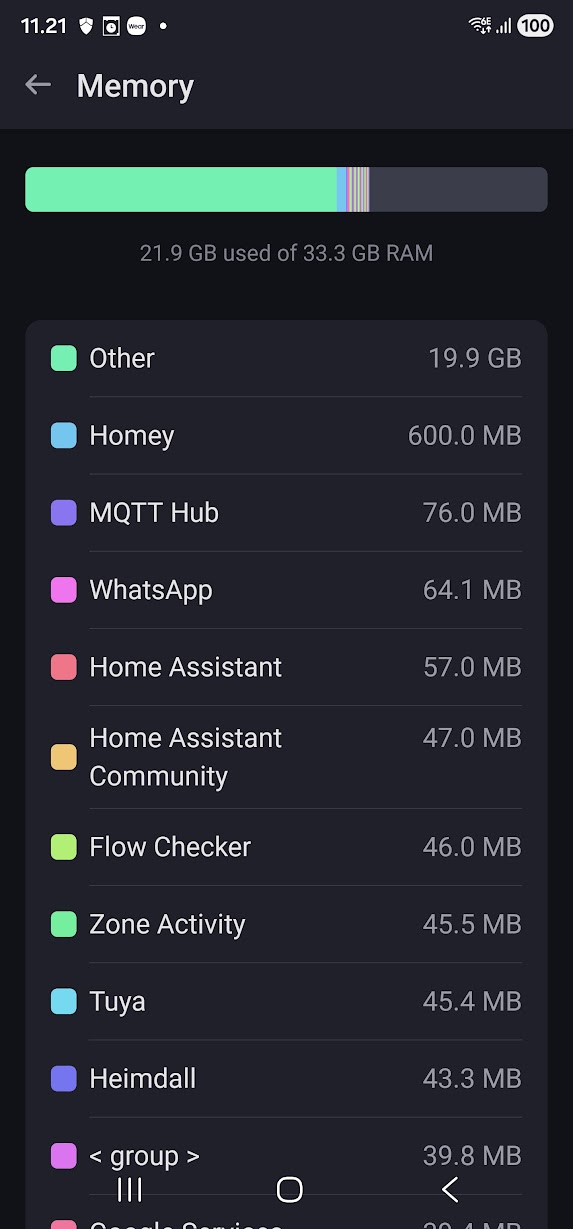
Incorrect RAM reporting in Homey SHS on Proxmox (Docker inside LXC)
Hi all,
I’m running Homey Self-Hosted Server on Proxmox inside an unprivileged LXC container with Docker.
The LXC container is explicitly assigned 16 GB RAM in Proxmox, and Proxmox reports this correctly:
Memory usage: 2.11 GiB of 16.00 GiB
Swap usage: 0 B of 512 MiB
The Homey container details:
Container name: homey-shs
Image: ghcr.io/athombv/homey-shs
However, in the Homey UI memory overview, Homey reports a completely different total memory value (e.g. ~33 GB), which does not match the RAM assigned in Proxmox.
Additional details:
-
Docker is running inside the LXC container
-
Homey is started via
docker run -
Data is stored via bind mount (
/root/.homey-shs) -
No explicit Docker memory limit (
--memory) is set -
Proxmox memory graphs look correct and stable
-
Homey runs fine and shows no memory pressure
This looks like a memory detection / reporting issue in Homey SHS when running Docker inside LXC (possibly related to cgroup v2 or unprivileged containers). Functionally everything works, but the reported total memory in Homey is misleading.
I’ve attached a Proxmox screenshot showing the actual RAM allocation.
Is anyone else seeing the same behaviour?
Is this a known limitation of the current SHS release?
Thanks.
LXC containers are different than VM’s that do have a memory ceiling. So not really surprising you can see all the memory if the proxmox pve host.
Does SHS support local users as although I can ping it across the lan I cant open it in a browser?
I’m not sure if it is a Proxmox issue, a SHS issue or my ubiquiti unifi setup
Thanks
Scott
Sorted… should have read the forum a bit more, port 4859
Grazie, provo!
Hi All,
On a proxmox pve 9 cluster I get the message:
[ERROR] environment:48 failed while executing: pveam download “$TEMPLATE_STORAGE” “$TEMPLATE_FILE”
any idea?
Just started to test Proxmox, VE 9.1.1.
From the Homey install guide for SHS on Proxmox:
”To create a backup, enter your machine with SSH or another terminal, and copy the files & folders in /root/.homey-shs to a safe location”.
Trying to use SSH, but can’t find the files/directory.
Anyone with some help here?
Thanks!
I just backup the whole LXC, but for your case:
So if you are connected to the machine, what’s the output of this command?
ls -lsa /root/.homey-shs/
To confirm, you are connected with the “root” account?
–edit: Oh and verify if the mount is as we expect it to be:
docker inspect -f '{{ json .Mounts }}' homey-shs | jq
Thanks!
I can access the files within the Proxmox console.
But I can’t figure out how to access the installation from SSH.
The provided username and password generated from the installation does not seems to be correct, using port 22.
Sorry, newbie on this field…
There is also an web login, but the password generated from the Proxmox installation does not work.
From the Athom guide:

I believe that SSH usename and password like this example was the correct to use.
Also using the provided HTTP address like the one in the example here, what in the earth is correct username and password…
Aha, SSH with password is disabled (by default), to enable
- Login via Proxmox shell:
pct enter <id> - Make a backup of the config (just in case we need it):
cp /etc/ssh/sshd_config /etc/ssh/sshd_config.bak - Edit the sshd config file:
nano /etc/ssh/sshd_config
Look for the following entries and adjust them (remove a # in front if it’s there and change the value):
PermitRootLogin yes
PasswordAuthentication yes
- Exit the file:
crtl + x - Save the file
y - Write to file: press
enter
Now restart the sshd deamon:
sudo systemctl restart sshd
Thanks!
PermitRootLogin yes was ok.
Could not see PasswordAuthentication yes.
Also found this: #Port 22, I guess the # should be removed?
22 is the default port, that’s fine, no need to change that (it’s defined elsewhere too)
There should be passwordauthentication in the file, but most likely commented (starting with a #):
Use this command to look on what line it stands (and if it’s there):
grep -n PasswordAuthentication /etc/ssh/sshd_config
My output (for reference):
57:PasswordAuthentication yes
81:# PasswordAuthentication.  Depending on your PAM configuration,
85:# PAM authentication, then enable this but set PasswordAuthentication
