
Network Printer — every cartridge, in Homey.
Turn any network printer into a Homey device that tells you the ink is running out — before you find out halfway through printing.
Your printer knows exactly how much ink it has left. It just never mentions it until you are standing in front of it, and Homey has no idea the black cartridge is down to 20%.
This app reads the printer over SNMP — the protocol nearly every network printer already speaks, with nothing to install on it — and turns each cartridge into a Homey capability a Flow can act on.
 There is nothing to look up: it searches your network and offers the printers that answer.
Install — now in the App Store
Source code 
What it does
 One level per consumable, titled with its own name — Black Ink Cartridge 202/202XL is what you order, not supply 2. However many the printer reports: there is no fixed number of slots
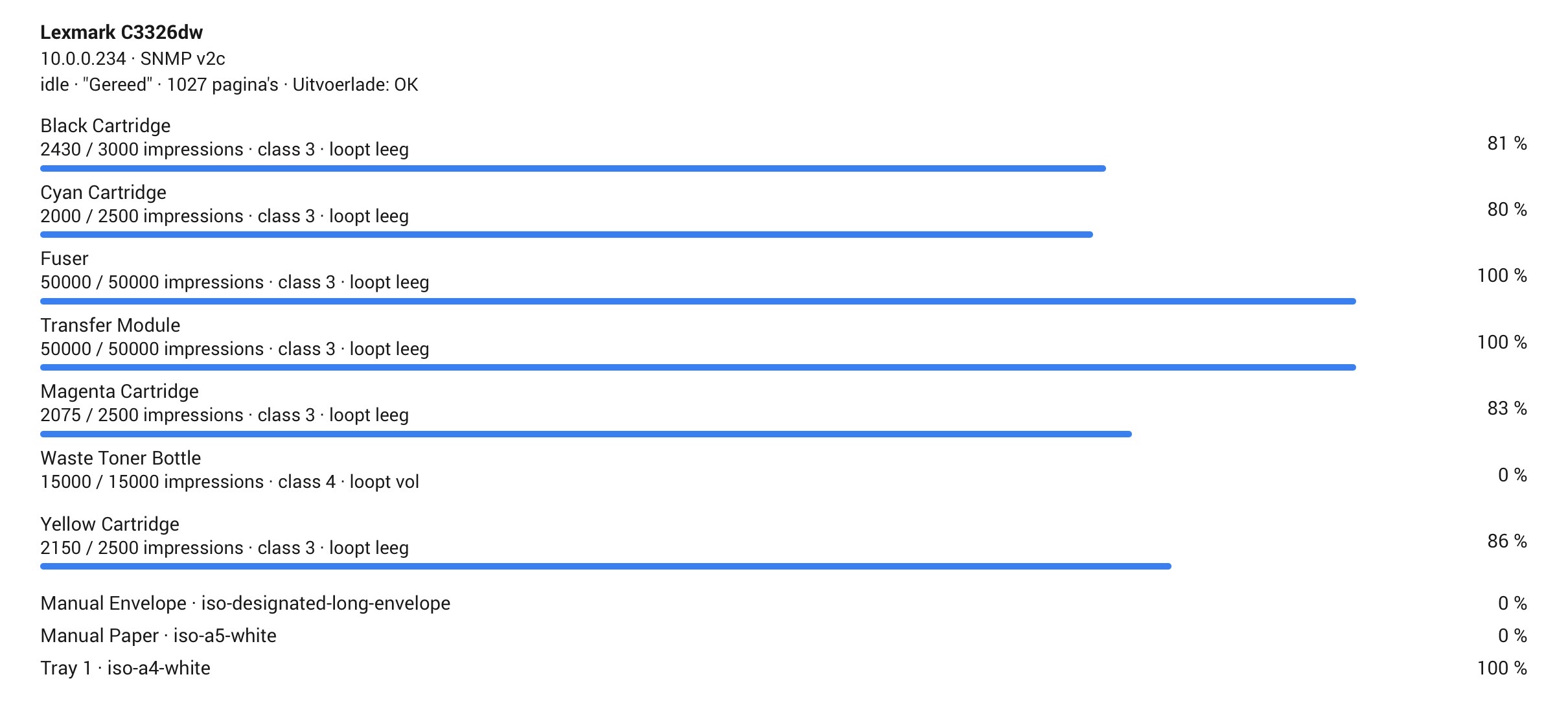
 Maintenance parts get their own rows — fuser, drum, transfer module, rollers. A laser that reports six consumables shows six, none of them folded away
 A level can sit beside the device icon as its indicator, so the black toner is readable without opening anything
 Any brand — everything read comes from the standard Printer-MIB, so Epson, HP, Brother, Canon, Kyocera, Lexmark, Ricoh, OKI, Xerox and Samsung all work the same way
 It finds the printer for you — a sweep of your network, and anything that answers is offered. You can still add one by address
 Low-supply alarm at a threshold you choose per printer. It fires as the level crosses the threshold — once — not every time the printer is read
 Error alarm for what actually stops printing: paper jam, out of paper, open cover, missing cartridge. Low-ink warnings stay out of it, since the supply alarm already covers them
 Status, panel message and page counter — including the text on the printer’s own screen
 Waste tanks reported as room left, so 100% always means nothing to do
 One level per paper tray, named after the tray and the paper loaded in it — plus a paper-low alarm
 Output tray — OK, half full or full, on printers that can sense it
 Printer alerts — what the printer itself says is wrong, in its own words
 Cover-open alarm
 Responding — the tile dims the moment the printer stops answering, and keeps its last readings on screen instead of hiding them behind a repair prompt
Nothing is hard-coded per model
The number of consumables, their names and their colours are discovered from the printer itself. A four-cartridge office printer and a nine-cartridge photo printer both work without a line of code between them — and so does a laser, where the same table reports toner and a waste box instead of ink.
Flow cards
 A supply runs low — carrying which one, and its level
- The status changes, optionally to one status in particular
- Pages have been printed, carrying how many
- The printer reports an error
 A supply is below a level (condition)
 Read the printer now (action)
The error and cover alarms use Homey’s own capabilities, so they come with its built-in Flow cards too — when the alarm turns on, and the matching condition.
Requirements
 Homey Pro — Homey Cloud and Homey Bridge cannot reach devices on your network, so they cannot reach a printer
- SNMP left enabled on the printer — it is on by default on nearly every network printer, with the read community
public  A fixed address for the printer — a changed DHCP lease is the most common reason a working printer goes quiet
- Homey firmware 12.11 or newer
Languages
 English
 French
 Dutch
Dutch
Feedback welcome
Developed against an Epson XP-6100, but no longer only that. People in this thread have since confirmed it on a Lexmark C3326dw, a Ricoh SP C242SF, an HP LaserJet CP1025nw and a Brother MFC-L2827DW — including waste bottles, drums and fusers, which my inkjet does not have and which I could never have tested alone.
Every bug worth fixing in this app so far was found by someone posting a screenshot here, not by me. The reading is standards-based rather than model-specific, so it should hold across brands — but a printer that reports its supplies oddly is exactly the thing I cannot find without you. If your levels look wrong, or your printer is not found at all, say so here: the app has a settings page that reads the printer live and shows what it sees, which usually settles it in one round trip.
Two known limits, stated plainly:
 Read-only. It reports; it does not print. HomeyPrint already does printing over IPP
- Brother’s toner level is not read yet. Everything else on a Brother comes through — drum life, page counts, status, trays — but the toner percentage lives in Brother’s own private OIDs rather than the standard table, and I will not guess at a number. Being worked on, from a real printer’s answers
- mDNS discovery does not work on every network. The app declares it, but multicast is filtered between wireless clients on many routers — mine included. The network sweep is what makes it work regardless, which is why both exist
What it looks like

Support the app 
This app is free, and built on my own time — evenings spent reading MIB tables so you do not have to. If it saves you a print job that would have died halfway through, you can support the work:


Posting what your own printer reports helps just as much — every model that lands here makes the next one work out of the box. Thank you for using it, and for every bit of support 
 !
!



 .
.

