I had that same problem a week ago, but when i refreshed the browser, it suddenly was ok… Same story? or does it stay broken?
Hi @Satoer, there is a minor issue when entering a payload formula. If you enter a long formula, the text overlaps the “Insert value” and “Insert topic” buttons. This makes formulating and maintaining the formula difficult.


Official Release: Dashboard Studio V2.0
Yes, it is finally here… Dashboard Studio V2 is officially ready for release. Months of of work has gone into this version with lots of new features and improvements. The test versions up to 2.0.13 gave me good feedback to polish things up, and now it is ready for everyone to use. Big thanks for all testers over here!
If you run into any issues or bugs, please let me know on the forum. A step by step description of what you are doing, along with details about your device and browser and Dashboard Studio version, helps me sort things out quickly.

What is new:
- New: Modern Editor Interface & Full Tablet Touch Support
- New: Basic and Advanced Editor Modes
- New: Three Dashboard Layout Modes (Fixed Resolution, Scale to Fit Screen, Responsive Columns)
- New: Homey Logic Variables, Direct Flows and Zone Moods via Personal API Key
- New: Frosted Glass Effects and 19 Glass Themes
- New: Convert Flat to Glass and Convert Glass to Flat Adjustment Themes
- New: Theme Preset Editor Tool
- New: Theme Color Tone, Intensity, Brightness and Contrast Sliders
- New: Custom Shape Polygon Containers
- New: Text Widget Scroll and Markdown Blink
- New: Convert iCal JSON to Markdown Flow Cards and Three Month Range
- New: Widget Presets
- New: Dashboard Audio System and Sound Effects
- New: In App Audio Gallery Manager
- New: Reset Canvas and New Dashboard Setup Wizard
- New: Theme Explorer and Dynamic Theme Switching via Topics
- New: Switch and Button Confirmation Dialogs
- New: Universal Widget Deactivated Mode and Opacity Control
- New: Linear Time Scales and Streaming Timestamps for Graphs
- New: Edit Mode Canvas Zoom Slider
- New: Landing Page and Inactivity Return
- New: Quick Toolbar
- New: Editor Tools Menu and Set Link Open Behavior
- New: Make All Dynamic Values Fixed Tool
- New: Menu Widget Batch Add Weblinks
- Improved: Major Performance Boost, Reduced Memory Usage and 24/7 Kiosk Stability
- Improved: Dedicated Viewer Mode for Older Tablets and iOS 12
- Improved: In App Documentation Rewrite and Complete Homey Beginner Guide
- Improved: In App Documentation Search and Navigation
- Improved: Inline Image Gallery Pickers
- Improved: Dynamic Icon Switching with Payload Formulas
- Improved: Text Widget with Payload Formulas in Markdown
- Improved: Text Widget Drop Shadows
- Improved: Menu and Button Widgets with Label Hints
- Improved: Edit Box Widget with Open URL Action
- Improved: Dashboard File Save Format
- Improved: Clock Widget Two Digit Day and Month
Modern Editor Interface and Full Tablet Touch Support

The editor interface has been redesigned with cleaner styling and refined dark and light modes. It now has full touch and stylus support. You can drag widgets, pull resize handles, box select multiple items, and adjust controls directly with fingers or a stylus on an iPad, Microsoft Surface, or Android tablet. There is no longer any need to connect a mouse just to edit a dashboard on a wall tablet.
Quick Toolbar
When scrolling down a tall widget settings panel, common actions used to be out of reach. The Quick Toolbar is a compact button rail that docks to the edge of the screen or floats anywhere on the canvas. It slides out automatically when the main toolbar scrolls away, keeping buttons like Undo, Redo, Copy, Paste, Delete, and Layering immediately accessible, along with fast access to all pages.
Reset Canvas and New Dashboard Setup Wizard
Starting a new dashboard no longer drops you onto a blank canvas. Reset Canvas opens a visual setup wizard that walks through selecting your preferred Editor Mode, Layout Mode, and starting Theme with preview cards before opening the editor.
Basic and Advanced Editor Modes

A common complaint with earlier versions was that the widget settings panel could feel overwhelming with dozens of options showing at once. Version 2 introduces two editor modes.
Basic Mode strips the sidebar down to the bare essentials. You only see the widget name, page, dimensions, container toggle, and preset picker. This is ideal for quickly placing devices without getting bogged down in styling details.
Advanced Mode gives access to all deep styling controls, including typography, glows, borders, shadows, animations, and audio triggers.
Individual widgets also have a toggle button at the bottom of their settings, so you can temporarily flip a single widget into Advanced mode without changing the mode for the entire dashboard.
Three Dashboard Layout Modes (Fixed Resolution, Scale to Fit Screen, Responsive Columns)

Dashboards are no longer restricted to a single canvas format. Dashboard Environment now offers three layout choices.
Fixed Resolution is the native, classic way to build dashboards. Every widget has an exact X and Y pixel position. This is the best choice for dedicated wall tablets where the screen dimensions never change and every button needs an exact spot.
Scale to Fit Screen is also designed for fixed wall displays, TVs, or monitors. You design on a fixed canvas, and the entire layout scales up or down automatically to fill the screen, either keeping the original aspect ratio with neat borders or stretching edge to edge.
Responsive Columns is built specifically for creating browser start pages or homepages. Instead of fixed pixel positions, widgets behave like cards in predefined columns. When resizing a desktop browser window or opening the page on a mobile device, columns reflow, scale, drop down, and stack neatly. You can set column counts, minimum and maximum column widths, gaps, and custom heights or column spans per widget. You can group multiple widgets to act as a single widget in the column view. I will create a full tutorial in the future on how to use this. You can check a responsive demo to test how it works. And here I have added a Quick start guide how to create a responsive website.
Direct Homey Logic Variables, Flows, and Room Moods via Personal API Key

A major addition in V2 is native integration with Homey Logic variables, Flows, and Zone Moods using an optional Personal API Key.
In V1, updating a variable or starting a flow required setting up bridge flow cards or helper triggers. Now, widgets like edit boxes, switches, and sliders can write directly to Homey Logic variables.
You can also start Standard and Advanced Flows with a single tap from a dashboard button or switch. The dashboard monitors real time flow status so it knows when a flow is enabled or disabled.
Activating room lighting ambiance is just as easy, because Zone Moods are directly accessible on buttons with built in cooldown protection.
The settings panel verifies your key on the spot, displays live permission badges, and organizes everything cleanly right below your room devices.
Frosted Glass Styling and 19 Glass Themes

V2 brings full glass styling to Dashboard Studio widgets.
Widgets can now blur whatever sits behind them on the canvas. You can customize background blur, surface translucency opacity, outline widths, and inner glow halos across switches, buttons, sliders, menus, gauges, and light grid tiles.
I added nineteen built in Glass Themes with balanced glass effects, blurs, and surface tints.
There are also two instant conversion adjustment themes called Convert Flat to Glass and Convert Glass to Flat. Convert Flat to Glass lets you apply glass styling over your existing layout with one click, while Convert Glass to Flat resets blurs and translucency back to solid surfaces while keeping all your colors and fonts intact.
Theme Color Tone, Intensity, Brightness, and Contrast Sliders

Fine tuning a theme palette no longer requires editing dozens of individual color codes. The Theme Colors panel now features four live adjustment sliders.
Color Tone rotates the overall hue angle. Color Intensity adjusts color saturation from vibrant to subtle monochrome. Brightness scales the illumination, and Contrast deepens shadows while expanding highlights.
All four sliders update your canvas live, maintain a clean baseline without clipping, and let you dial in the exact atmosphere for daytime glare or cozy evening rooms.
Custom Shape Containers
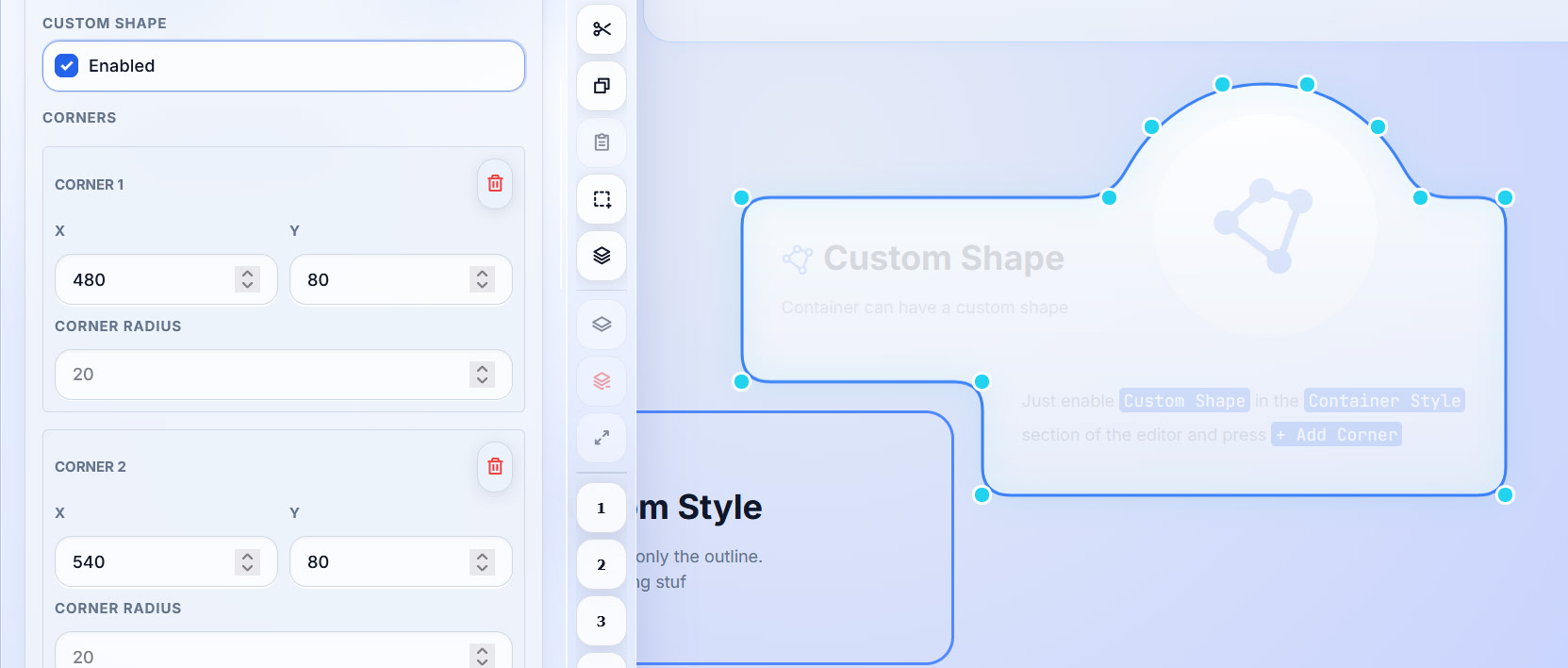
Containers are no longer limited to simple rectangles. With Custom Shape mode, container widgets can become custom polygon shapes.
You can click to add corners, drag points anywhere on the canvas, set individual rounding radiuses per corner, and snap vertices to the grid. Whether you want angled room dividers, chevron badges, or custom panel borders, you can draw them directly on screen.
Text Widget Drop Shadows, Scrolling Marquees, and Blinking Alerts
The Text widget received some great new capabilities.
You can now add drop shadows behind markdown elements with full control over shadow opacity, shadow color, and blur radius, making text stand out clearly against bright pictures or translucent glass backgrounds.

Animations and Effects now includes Text Scroll. You can turn any markdown text block into a moving marquee ticker with horizontal or vertical movement. Choose between continuous Loop, smooth Bounce, or Reset motions, adjust the speed, reverse the direction, or set it to run only when text overflows the widget frame.
You can also make phrases, data tables, or callout blocks pulse with the new markdown blink syntax. Simply wrap your text in [blink]…[/blink], or set a custom timing like [blink 1.5] to catch attention when sensors report warning values.
Calendar and iCal Flow Cards Overhaul
The calendar integration has been completely revamped with Convert iCal JSON to Markdown flow cards, packed with flexible date formats relative to today. You can generate views for Tomorrow, Yesterday, This week, Next week, Previous week, This month, Next month, Next weekend, or rolling spans like Today plus three days.
The Load and Filter iCal card now features a Previous, current and next month timeframe. This means one single calendar fetch can feed multiple distinct markdown views on your dashboard without repeatedly downloading from external calendar servers.
Best of all, the backend streaming engine was completely rewritten to dramatically cut memory usage on Homey, keeping the app light and responsive.
Massive Performance and Memory Improvements
Performance has improved a lot across the board in V2. The calendar flow cards were rewritten to stream events directly, so memory usage on Homey dropped significantly even with large calendars. Starting the editor is much faster because the canvas and widgets on screen load first, while extra tools load in the background. In daily use, changing settings, switching pages, picking colors, and selecting widgets feels snappy because the inspector updates items in place without redrawing the whole panel. Graph plotting was also moved to Canvas 2D, asset caching was added on Homey, and memory leaks were cleaned up so wall mounted tablets can stay running smoothly around the clock without slowing down over time.
Widget Presets

Basic mode completely relies on presets and sub-presets to style the widget, but it is also accessible in advanced mode. Users can also make their own widget presets.
Most widgets now include a built in library of ready to use presets. Custom designs can be saved directly to Homey storage as user presets. Presets support multiple variants in a single file, main preset and subpreset.
Applying a preset updates visual styling only. Device bindings, output topics, coordinates, and custom labels remain completely untouched.
Dashboard Audio System and Sound Effects

Dashboards can now provide audible feedback. Short audio clips can play when tapping buttons, toggling switches, adjusting sliders, or when sensor thresholds are reached.
Topic Audio lets you configure sounds globally in Dashboard Settings based on incoming MQTT or Homey topics, like playing a chime when a doorbell rings.
Per Widget Audio lets more than ten widget types assign sounds to specific events like press, release, toggle on or off, or clock chimes.
Startup Protection keeps audio muted for five seconds after dashboard load, preventing a burst of noise when Homey sends initial device states.
In App Audio Gallery Manager

Audio files can now be managed directly inside the Audio Gallery on Homey Pro. Upload MP3, WAV, OGG, or FLAC files, listen to them with an inline audio player, and organize or delete them without leaving the browser. A packaged library of sound effects is also included out of the box. Both audio and image galleries support Shift click and Ctrl click for batch deletion, and modal dialogs can now be dragged anywhere by their titlebars.
Theme Explorer and Dynamic Theme Switching

A dedicated Theme Explorer dialog lets you browse built in and user themes with thumbnail previews. Clicking any theme previews it live on the canvas so you can see how it looks before deciding to apply or cancel. A brand new official theme called Dashboard Studio Light offers clean blue tones and strong contrast for bright daytime rooms.
You can also bind the theme dropdown in Dashboard Environment directly to a Homey or MQTT topic to switch dashboard themes dynamically based on presence, time of day, or automations.
Widget Preset Editor Tool

There is a tools menu where you can find all kinds of scripts to automate things. One of these tools is the Widget Preset Editor to make editing multiple widget presets easier. It opens a spreadsheet style workspace for managing widget presets. It shows all properties of a widget type as rows and preset variants as columns, making it easy to compare values side by side, toggle which settings are applied, and duplicate built in presets into custom versions. Not really necessary for regular users, I mainly created this to make my development easier. 
Switch and Button Confirmation Dialogs

Accidental clicks on sensitive devices like garage doors, main power switches, alarms, or nuclear launch installations are now preventable. Turning on confirmation dialogs for a switch or button opens a prompt asking the user to confirm before the command is sent. Prompts can be customized with specific text and icons, or styled globally in Dashboard Environment. You can even choose whether confirmation triggers on a simple tap or on a deliberate hold to activate press.
Universal Widget Deactivated Mode and Opacity Control

Every widget now features a Deactivated toggle and an Opacity slider in its inspector settings.
When a widget is deactivated, all clicks, taps, and keyboard interactions are cleanly blocked, yet the widget continues to update and display incoming live data in real time. It uses a two tone deactivated styling so you can clearly see that the control is temporarily locked out.
The universal opacity slider lets you adjust transparency from full visibility down to invisible for subtle visual hierarchy or background elements.
Linear Time Scales and Streaming Timestamps for Graphs
The Graph widget now supports true Linear Time Scaling. Instead of spacing measurements evenly across the chart, points sit at positions reflecting the actual time elapsed between events. Quiet intervals remain visible as authentic gaps on the timeline.
When streaming live numerical readings, the graph automatically records arrival timestamps, allowing date and hour axis formats to display accurately. Plot rendering was also moved to Canvas 2D for fast, smooth responsiveness.
Edit Mode Canvas Zoom and Centering

Editing large wall tablet dashboards on a laptop screen is much more comfortable thanks to the Edit Mode Zoom slider in Editor Tools. You can scale the canvas smoothly from a compact overview up to a large close view with a single slider, without changing your browser zoom or altering the live viewer layout. Canvas positioning has also been improved so your design stays centered and easy to reach.
Landing Page and Inactivity Return

For dedicated wall mounted displays, you can now designate a Landing Page and Inactivity Return page along with an idle timeout period. If nobody touches the screen for a set number of seconds, the dashboard navigates back to your main overview page automatically.
Editor Tools Menu, Set Link Open Behavior, and Freeze Dynamic Values

The Tools menu includes handy scripts to save time. The Set Link Open Behavior dialog can scan your entire dashboard and update all link targets across buttons, menus, edit boxes, and markdown text to open in either the same tab or a new tab with one click.
Another tool is Make All Dynamic Values Fixed, which takes the current live readings from all topic linked settings across your dashboard and converts them into permanent static values in a single step. Mainly to share dashboards for testing with current values. (otherwise it will be completely empty which makes it harder to test)
Menu Widget Batch Add Weblinks

Setting up a dashboard menu navigation bar full of web shortcuts used to take a lot of repetitive typing. The Menu widget now has a Batch Add Weblinks option where you simply paste a list of URLs. The app automatically creates the menu items, fetches real website page titles, and pulls high resolution site favicons for you.
Viewer Mode for Low Power Displays and Tablets
The dedicated viewer mode (viewer.html) was completely rebuilt for speed on low power wall tablets. It strips out all editor code and demand loads only the scripts for widgets actually placed on the dashboard. Combined with a reverse topic indexing system, targeted visual updates that avoid full widget repaints, and automatic CPU throttling when a tab is hidden, your displays stay responsive and cool.
The Dashboard Studio V2 editor has dropped compatiblility with with iOS 12 (used by 2014 iPad Air 1), but the viewer is still compatible! So it is still possible to give this relic a second life. Just don’t browse to the editor url, that might crash the old iPad.
In App Documentation Rewrite and Complete Homey Beginner Guide

The built in documentation was largely rewritten for clarity, featuring visual settings references and clean keyboard shortcut tables. The beginner tutorial, Homey: The Complete Guide, covers everything from device configuration and topic binding to multipage dashboards, themes, kiosk mode, and flow card integration. And there is a new guide instructing how to create a responsive website with it.

The widget label in edit mode has a small question mark that takes you directly to that widget’s documentation.

The Documentation panel includes an instant search bar to find topics, guides, and specific settings across the entire help library, with dedicated Back and Forward buttons to easily retrace your steps.
Inline Image Gallery Pickers

Every image URL input in the editor, such as Image widgets, container background pictures, and custom icon slots, now has an inline gallery button. Clicking it opens the Image Gallery so images can be picked or uploaded directly into the field without manually copying file paths.
Dynamic Icon Switching and Markdown Payload Formulas
Bound icon fields now support Payload Formulas. Icons can change automatically based on live values, like showing a sunny icon when solar production is high or switching between door open and closed glyphs.

The Text widget supports calculations directly inside Markdown content using double curly braces:
{{if({{local/slider}} >= 50, ":ph-lamp|32|@warning:", ":ph-moon-stars|32|@accent:")}}
You can perform math, scale incoming values, and format live data directly within text paragraphs and markdown tables. You can change text, colors, data, or icons based on incoming values, join text strings using plus operators, or test strings with contains functions.
Tooltips, Web Launchers, Clean Storage, and Date Formatting
Buttons and menu rows support native browser tooltips that automatically appear when labels are too long to fit their containers, keeping long device names readable on hover.

Edit boxes can function as search bars or web launchers using the Open URL action. Entering text and pressing Enter or a submit button can open a composed web address with custom prefixes and suffixes.
Dashboard JSON files are now stored in a clean, human readable structure grouped logically into environment, container, typography, and widget defaults. Older dashboard files migrate automatically on first load.
Clock Date Time Text date parts now include Two Digit Day and Two Digit Month with leading zeros, so 8 becomes 08 and 12 stays 12, which is great for compact numeric dates. Two digit year setting will be released in the year 2099
Wrapping Up
Well… that is the bulk of changes. Probably forgot a couple of things!
Anyway hope you like it, and if there are any problems please let me know in this thread. Remember to include steps to recreate the problem, DS version, and type of browser and OS you are using.
Really nice and impressive update @Satoer !
And just in time because I was busy with redesigning my dashboards.
I was already running on the test version and love the new changes!
A user pasted a question in a separate topic (and private message) I shall create the tutorial over here, maybe others have a use for a timer button as well.
Hi Michael,
Sure, no problem. I will try to help you out. As I understand it, you are controlling the OVMS via MQTT, and although Dashboard Studio is MQTT compatible, I do not advise using the MQTT functionality here. The direct Homey integration is way better and gives you a lot of extra functionality.
Dashboard Studio does not provide built in timer functionality. This should be handled inside Homey. Homey controls Dashboard Studio, and Dashboard Studio can control Homey.
Let’s take it one step at a time. Do not get scared of this long tutorial, it is just a long explanation of what and why we do things, but it is basically just 5 to 10 things you need to configure.
The basic steps are:
[Add button] => [Set trigger to homey] => [let this trigger start a timer] => [on every second send message to dashboard Studio] => [Show second value]
It would be quicker to configure everything at once (like the button), but for the best understanding, we will go through it step by step in logical order.

First, reset the canvas and press “Skip Wizard”. This will create a default advanced canvas. Or use your current Dashboard if you already was working on it.
First, let’s create a button.

Press “Create Widget” and select “Switch/Button”.
This will add a default pill switch style to the canvas.
We want a push button style. The easiest way is to just select a preset.

Choose something like “Button Label Inside”. You can change the font size, icon, etc. inside the button settings.
Now open the “Action & Behavior” section.
“Mode” should be set to “Toggle Switch” (this is the default setting). A toggle switch is simply an on and off switch.
When the button is pressed, Homey needs to know about it. Dashboard Studio communicates just like MQTT using “Topics”. These are messages that can contain values. We can make up topic names ourselves. Let’s call this Enable_Climate_Control (do not use spaces!) and add it to the output topic.

Now when you push the button, the value true or false is sent to Homey on the topic “Enable_Climate_Control”.
When the button is pressed, you want to see a countdown. Homey does not have built in timer flow capabilities (other than the “Wait” card), so we need to install a separate app for that. There are several timer apps available, and in this tutorial, we will install the app called “Chronograph”. This app can also be triggered on intermediate timings.
Go to your Homey web environment and create an Advanced Flow. Add a “Dashboard Studio Trigger” card and let it trigger on Enable_Climate_Control. Now every time the button is pressed, this is triggered.
Next, feed this into a Logic “is equal to ‘yes’” card. We only want to trigger the timer when the button is pressed down (true/yes), not when it goes up (false/no).

Connect this to a Chronograph “Start or replace transition” card. I made up the name “Climate_Control_Timer”. When this timer is activated, I want a trigger every second with the remaining seconds. So in 10 minutes, I want 600 messages (since there are 600 seconds in 10 minutes). We fill in from 600 to 0 in 601 steps (one extra step because counting down to 0 takes 601 steps). At each step, it will send a message over the course of 10 minutes.
Now below this, add the Chronograph card “Transition has reached a step” and add the timer name “Climate_Control_Timer”. This will trigger every second while the timer is running. We need to send this value to Dashboard Studio.

Add a Dashboard Studio “Send with value to Dashboard” flow card to the flow. I made up the topic name “TimerTime”, and for the value, use the “Transition value” tag from the transition card.
Now go back to Dashboard Studio. We want to display these remaining seconds, and we can do this in several ways. Let’s start simple and add a Label widget to the canvas. Scroll to the “Text Settings” section. Inside Dashboard Studio, almost ANY setting can be made dynamic. In this case, we want to make the “Text” dynamic.

Hover over this setting and a little chain icon will pop up. Click it to make this setting dynamic, and fill in the TimerTime topic you made up earlier.
Now save the dashboard and exit the editor. Press the button. You should now see the timer counting down from 600 to 0 in the text widget. Great! We can do way more though. Let’s have a bit of fun and add a Gauge widget to the canvas.
Select the preset “Horizontal / Icon Left”. Open the “Data Configuration” section and set “Max” to 600. Make the “Value” dynamic (just like before) and fill in the “TimerTime” topic. Now we have a percentage bar that counts down. Or if you want it to fill up instead, set Min to 600 and Max to 0.

Let’s take it one step further, which is probably the best way to use it. I want the button label itself to show the remaining seconds.
Open the editor, select the button, and open the “Text & Typography” section. Now make the button label dynamic and fill in TimerTime. When you press the button, it will show the remaining seconds… but we actually want to see the button label text as well. We can do this by adding binding formulas. Hover over the setting and you will see a slider icon next to the chain icon. Press it. Here you can add a formula to change the payload.

Add "Climate Control (" + value + "s)". Now it shows the label along with the remaining seconds!
Let’s take it a step further. When it hits 0, it should not show that there are 0 seconds left. Change the payload formula to: "Climate Control"+ if (value > 0," ("+ value +"s)","")
This is a simple if/else snippet that basically says: “When the value is above 0, add the seconds, otherwise do not add anything.”
We can even take it another step further if you add:
"Climate Control"+ if (value > 0," ("+ round((value / 60) - 0.5) + "m" + ( value - (round(( value / 60) - 0.5) * 60)) + "s)","")

This will convert the seconds into minutes and seconds, like “Climate Control (2m27s)”.
Okay, enough fun with showing the seconds. We still have a problem: when the button is pressed, we can press it again to deactivate it. That should not be possible, so we need to disable the button while the timer is active. There are multiple ways to do this. You could send an activation topic from Homey to enable and disable the button when you enable the timer and when the timer is finished, but we can already do this with just using the timer seconds we have.
With the button widget selected, open the widget section and make the “Deactivated” setting dynamic. Fill in the TimerTime topic. Basically, this should work right out of the box because 0 equals “false” and everything other than 0 equals “true”.

However, we can make it a bit neater by adding the binding formula: if( value > 0, 1, 0). This basically says “If the value is above 0, the result is 1 (true), otherwise 0 (false).”
Since we wanted the button to be red when activated, just change the “Deactivated Color” to red inside the Appearance section.
Now, after the 10 minutes are up, we want the state of the button to be turned off again. Go to the “Action & Behavior” section, make the “State (on/off)” setting dynamic as well, fill in the TimerTime topic, and use the exact same if( value > 0, 1, 0) formula.

One thing missing is the “glow”, because a disabled widget does not have a glow option. You could solve this by adding a container hidden behind the button, configuring a glow on that container, and making its visibility setting dynamic using the same formula.
[EDIT] I stumbled during testing of this tutorial on a bug. Make sure you are on version 2.0.16 (or later) , this resolves the bug (you can see the version in the top of the editor)
This has been solved in 2.0.14 
Also solved in 2.0.14
I have a graph on my dashboard which is basically 3 graphs on top of each other (3 sets of solarpanels)

My issue is that the axis are both displayed 3 times, which makes them look weird. I cannot find a way to hide the axis, except to disable it, but then the graphs do not line up anymore. Can’t find an way to set the font to transparant also.
Maybe there is a better way to combine 3 grahps?
Another on is the linecolor on a graph with positive/negative values and fills; it never looks good and there is no way to not display the line (f.e. width 0 or transparant, or maybe have the line also vary color with pos/neg values).

Very happy with this app, although I only have a fairly simple dashboard 
That’s the way I do it. I disable the axis and play around with the X, Y, Width, and Height in the layout dimensions to get it positioned perfectly. You can also disable grid snap to position it, though I just noticed a bug where the width and height still move in grid steps. I’ll fix this in the next version.
Anyway, I don’t quite understand why it isn’t lining up in your situation. Maybe the Y axis text is constantly changing width because of fluctuating values? Does it fix the issue if you set the X axis to a fixed width instead of automatic? (Look for the “X-Axis Fixed Width” setting in the “Axes & Labels” section).
I can add this in the next version.
Yes, there is a much better way, and it’s actually something I’ve been working on for a while. The better solution is being able to just add multiple data sets inside a single graph widget. I totally understand that the current workaround is clumsy, and it will definitely be improved.
I will make a width of 0 completely hide the line. I never expected users to want to create a graph without the actual graph line though You can also change the opacity of the fill. Could you share some example images of the kind of graph you’d like to create?
The alignment issue is sorted out too. It wasn’t completely broken before, it just handled left, center, and right alignment across multiple lines of text within the label itself instead of centering or right-aligning across the full available width.
Tnx for you reply, I will leave it for now and try to fix it with for the new ‘combining’ feature.
As for the graph line, if you are going to work on it I think the best solution would be to also make the line optionally have different color for neg/pos. That way you can set the line to the same colors as the fill and the line will disappear.
But I can image wanting to make a graph without fill, but WITH a line that is different colors for neg/pos.
Adding the 0 width/transparant colors is also a nice additions.
I use this formula for the color of a button: if(or({{topic_A}},{{topic_B}})==0,@danger,if(and({{topic_A}},{{topic_B}})==1,@placeholder,@glow)). If topic_A or topic_B equals 0, the button color does not become red (@danger); instead, it takes on the theme’s default color. If topic_A or topic_B is 0 or 1, the button is assigned the correct color.For readability, I have referred to the actual topic names as topic_A and topic_B.Did I make a mistake in the formula?
I have a real hard time to understand what you actually want to happen? If topic_A or topic_B equals 0, the button should become @danger…
But If topic_A or topic_B is 0 or 1, the button is assigned the correct color??
Both are “or”?
Sorry, I also see now that I wasn’t very clear in my description. This is my intention:
- topic_A and topic_B = false, then colour @glow;
- topic_A and topic_B = true, then colour @placeholder;
- topic_A = true and topic_B = false, then colour @danger;
- topic_ A = false and topic_B = true, then colour @danger.
In case 3 and 4, the colour is not @danger, but the default colour of the theme. Is there an error in my formula?
You have swapped `@glow` and `@danger`
Can you try this (using xor is more clean) :
if(xor({{topic_A}},{{topic_B}}), @danger, if(and({{topic_A}},{{topic_B}}), @placeholder, @glow))
I have tried to test all possible situations. These are the results of those tests:
- topic_A = true and topic_B= true then color is glow;
- topic_A = false and topic_B= false then color is default theme color for the button. When I go back to topic_A = true and topic_B= true then color does not change. Only when I press the button afterwards the color changes back to glow;
- topic_A = true and topic_B= false then color is danger;
- topic_A = false and topic_B = true then color is danger;
Also in case 3 and 4 when I go back to topic_A = true and topic_B= true then color does not change. Only when I press the button afterwards the color changes back to glow.
I don’t see the color placeholder appearing anywhere at all. Perhaps you could help me resolve this?
Clarification
My intention is as follows:
- If topic_A and topic_B are both true, then use color placeholder;
- If topic_A and topic_B are both false, then use color glow;
- If topic_A is false and topic_B is true, then use color danger;
- If topic_A is true and topic_B is false, then use color danger;
Hmmm I should have tested the forumula. Sorry there is a bug in the formula backend code Freek. I wil get this fixed in the next version.
Hi!
Just started using the app, and it is amazing! Me and my AI pal has done wonders =)
Thank you so much! <3
Small bug report:**
Gauge widget: icon class bound to a topic with a Payload Formula shows the default icon in the read-only view, but works in the editor**
Hi, and thanks for the great app! I’m running the latest test version of Dashboard Studio (2.0.16).
What I did
I have a Gauge widget and linked its Icon class field to a topic. In Binding Options I added a Payload Formula that results in an icon name:
What happens
- In the editor, the icon changes correctly with the value.
- When I open the dashboard through the read-only link (the one without the editor), the Gauge shows only the default icon and it never changes.
Workaround that works
If I add a separate Icon widget and bind its icon class to the same topic with the exact same formula, it works correctly in the read-only view too. So the formula and the topic are fine, and the issue seems specific to the icon field inside the Gauge widget when the dashboard is not opened in the editor.
Thanks!
Thanks for the bug report Marcus, but I can’t seem to reproduce this issue. If I understand correctly, the icon doesn’t change via the formula when you are in viewer mode instead of the editor.
I ran a quick test using a switch and connected its topic to the gauge’s “icon name”. I added this binding options formula: if(value , "ph-arrow-fat-right", "ph-arrow-fat-left")

I saved it (did you remember to save?) and opened the viewer.
Switch off:

Switch on:

Everything seems to work as expected on my end. That said, this is my current production build of Dashboard Studio, where I just fixed the bug that Freek mentioned above. It is very possible that fix also resolved this issue. Unless I misunderstood the problem (please let me know if so), it looks like it is already taken care of.
Just out of curiosity, what role does your AI pal play when building Dashboard Studio dashboards? Is it just conversational chat with an LLM, or do you have an AI agent generate the complete dashboard for you?
Thank you for your prompt reply.
Seems to work for you, indeed. If I still experience the same thing after your next update I will update with screenshots.
Only conversational, I don’t let the AI generate automatically.
I brainstorm concepts with it including generating concept images, it writes Homeyscripts for me, Flow card formulas, suggest Dashboard widget setting, writes Dashboard Payload formulas, and review the final work with improvement suggestions. After it reviewed your documentation, it is fairly spot-on, although it may occasionally come with weird suggestions such as using battery (instead of gauge) for showing e.g. upcoming rain amounts.
Btw, will you update the calendar the Convert iCal JSON flow card to include multi-lingual support? Do you require assistance translating?
And again. I am blown away with what you have created here! 
Hmm, the Homey side of the app (which includes the Dashboard Studio flow cards) should already be translated (including the markdown it produces). It currently supports 13 languages. I translated everything using AI, but I haven’t received any feedback about it yet.
Have you also checked the Dashboard Studio settings? (Inside Homey)

The calendar options have a dedicated tab for localization settings, including icon bindings based on keywords. Those calendar cards are a major pain in the butt with all the different customs across countries, since everyone likes to do things a bit differently. Lets say that I have learned a lot
Anyway, are you missing a specific language? Have you set Homey to your preferred language?because that is what it relies on.
Thanks 
Aha. I run Homey in English, but the Dashboard (which is for the whole family) is in Swedish. I did check the calendar settings, but no language setting there, as I understand why now. Would it be possible to manually select language?
