[APP][Pro] Tuya Local

The diagnostic report is 901cfb31-3895-4352-abc3-f366b7a583be I accessed the failed device creation about 5 mins before creating the diagnostic report and a second one just after trying to create a new device 1a64948a-86d2-4344-999e-7e6aa8b569da

The DPs in text format

{
  "result": {
    "properties": [
      {
        "code": "meal_plan",
        "custom_name": "",
        "dp_id": 1,
        "time": 1781257275000,
        "type": "raw",
        "value": "AA=="
      },
      {
        "code": "manual_feed",
        "custom_name": "",
        "dp_id": 3,
        "time": 1781257265328,
        "type": "value",
        "value": 1
      },
      {
        "code": "feed_state",
        "custom_name": "",
        "dp_id": 4,
        "time": 1781257275358,
        "type": "enum",
        "value": "standby"
      },
      {
        "code": "factory_reset",
        "custom_name": "",
        "dp_id": 9,
        "time": 1781257275606,
        "type": "bool",
        "value": false
      },
      {
        "code": "battery_percentage",
        "custom_name": "",
        "dp_id": 11,
        "time": 1781255649166,
        "type": "value",
        "value": 0
      },
      {
        "code": "fault",
        "custom_name": "",
        "dp_id": 14,
        "time": 1781255649342,
        "type": "bitmap",
        "value": 0
      },
      {
        "code": "feed_report",
        "custom_name": "",
        "dp_id": 15,
        "time": 1743922240002,
        "type": "value",
        "value": 0
      },
      {
        "code": "voice_times",
        "custom_name": "",
        "dp_id": 18,
        "time": 1781257275610,
        "type": "value",
        "value": 0
      },
      {
        "code": "power_mode",
        "custom_name": "",
        "dp_id": 101,
        "time": 1781255647716,
        "type": "enum",
        "value": "strong_power"
      },
      {
        "code": "record_set",
        "custom_name": "",
        "dp_id": 102,
        "time": 1781255647672,
        "type": "enum",
        "value": "record_stop"
      },
      {
        "code": "recording_exists",
        "custom_name": "",
        "dp_id": 103,
        "time": 1781255647682,
        "type": "enum",
        "value": "no_voice"
      },
      {
        "code": "surplus_state",
        "custom_name": "",
        "dp_id": 108,
        "time": 1781255647616,
        "type": "enum",
        "value": "full"
      },
      {
        "code": "record_state",
        "custom_name": "",
        "dp_id": 109,
        "time": 1781255649256,
        "type": "enum",
        "value": "record_end"
      },
      {
        "code": "record",
        "custom_name": "",
        "dp_id": 110,
        "time": 1743922240002,
        "type": "value",
        "value": 0
      },
      {
        "code": "log",
        "custom_name": "",
        "dp_id": 112,
        "time": 1781255647624,
        "type": "bool",
        "value": true
      },
      {
        "code": "indicator",
        "custom_name": "",
        "dp_id": 113,
        "time": 1781255647688,
        "type": "bool",
        "value": true
      },
      {
        "code": "wifi_signal",
        "custom_name": "",
        "dp_id": 114,
        "time": 1743922240002,
        "type": "value",
        "value": -255
      },
      {
        "code": "plan_feed_report",
        "custom_name": "",
        "dp_id": 115,
        "time": 1743922240002,
        "type": "value",
        "value": 0
      },
      {
        "code": "voice_name",
        "custom_name": "",
        "dp_id": 116,
        "time": 1781255647630,
        "type": "string",
        "value": "record.MP3"
      },
      {
        "code": "wifi_off",
        "custom_name": "",
        "dp_id": 117,
        "time": 1781255647626,
        "type": "bool",
        "value": true
      },
      {
        "code": "offline_feed_record",
        "custom_name": "",
        "dp_id": 118,
        "time": 1781257275000,
        "type": "raw",
        "value": "B+oGDAopDwECAA=="
      },
      {
        "code": "reset_wifi_cnt",
        "custom_name": "",
        "dp_id": 119,
        "time": 1743922240002,
        "type": "value",
        "value": 0
      }
    ]
  },
  "success": true,
  "t": 1781502388993,
  "tid": "8e0f6786687d11f1ad643a5ee8a86465"
}

I looked at the logs and there is only data for a light that is Tuya Smart+ but not actually physically connected at the moment

15/06/2026, 07:57:53 [INF] [Light] Reconnecting in 341s (attempt 160)
15/06/2026, 07:57:53 [ERR] [Light] Connection failed: connect EHOSTUNREACH 192.168.1.123:6668
15/06/2026, 07:57:53 [ERR] [Light] Error from socket: connect EHOSTUNREACH 192.168.1.123:6668
15/06/2026, 07:53:46 [INF] [Light] Reconnecting in 245s (attempt 159)
15/06/2026, 07:53:46 [ERR] [Light] Connection failed: connect EHOSTUNREACH 192.168.1.123:6668
15/06/2026, 07:53:46 [ERR] [Light] Error from socket: connect EHOSTUNREACH 192.168.1.123:6668
15/06/2026, 07:49:03 [INF] [Light] Reconnecting in 279s (attempt 158)

The same for DP Debug. The only available device is the light, I am guessing that due to the add of the feeder failing your app is quite reasonably treating it as not on the system.

Thanks again for the effort you are putting in on this. It is much appreciated.

Stephen

Hi Stephen,

I have run your full device snapshot through the driver’s auto-detection logic and this device should be fully compatible. After a Homey restart, the pairing wizard should configure everything automatically with no manual DP adjustments needed:

Capability What your feeder reports
Portions picker (1–50) DP 3 — manual feed trigger
Feed state DP 4 — standby / feeding / done
Fault alarm DP 14
Portions dispensed DP 15
Battery % DP 11
Food level DP 108 — reports full / low / empty
LED indicator DP 113

One setting to adjust after pairing: set Offline Grace Period to 120 seconds or higher. Your feeder shows wifi_off = true (or set this setting to false) which on Petlibro devices means the radio may sleep briefly between scheduled feeds — without the grace period Homey would mark it unavailable unnecessarily.

The Homey restart is the fix. The error is:

Error: Invalid Capability: feed_portions
  at getCapabilityOptions (Device.js:615)
  at onInit (device.js:67)

This means the device was created successfully, but when it initialised, Homey’s internal capability registry still did not have the feed_portions definition from the update. A full Homey restart flushes that cache.

I’m not sure, but maybe this is related to your “Homey Self-Hosted Server”?

Steps:

  1. Delete the pet feeder device (if it still exists from the failed attempts)
  2. Homey app → More → Settings → General → Restart Homey
  3. Wait ~2 minutes for it to come back
  4. Add the Pet Feeder again — it should now work cleanly

One unrelated thing I noticed in your log: a Light device at IP 192.168.1.123 has been failing to connect since attempt 127 and is now at attempt 160+. That is almost certainly one of your white LEDVANCE bulbs with a stale IP address. Please check your router’s DHCP table to confirm the current IP of that bulb — it has likely changed. You can update the IP directly in Homey → Devices → [the bulb] → Settings without re-pairing.

Andi

Hi

Deleted pet feeder. - restarted Homey via settings - added new feeder - adds OK but then flashes

Device Unavailable

Invalid Capability: feed_portions

Deleted pet feeder. - closed Homey server - restarted Homey - added new feeder - adds OK but then flashes

Device Unavailable

Invalid Capability: feed_portions

Stephen

Hi Stephen

Please try again with the new version: Tuya Local | Homey

Andi

That’s got it. Existing device ran clean after installing 1.0.59 and restarting Homey.

I’ll test the functionality over the next few days and get back to you. Also, I’ll add the bullbs.

Deleted the errant bulb until the feeder is hopefully sorted.

Many thanks

Stephen

Hi! Great app! I have a question. I use a poolex heatpump for pool warming. Al seems to work fine except for setting the “mode” in homey. When in heat mode no changes in mode are happening on the device when setting in Homey. When on auto, setting to heat or cool results in the heatpump going to heat. Could it be an error? I added diagnostic data below.

I created diagnostic report 96c90381-ba6a-4b9c-9110-2405da036534

25-06-2026, 00:42:29 [INF] [Hottub warmtepomp] Connected
25-06-2026, 00:42:26 [INF] [Hottub warmtepomp] Reconnecting in 3s (attempt 1)
25-06-2026, 00:42:26 [WRN] [Hottub warmtepomp] Disconnected: Timeout waiting for status response from device id: bf356aa5b31f26a987fwub
25-06-2026, 00:42:26 [WRN] [Hottub warmtepomp] Timeout waiting for status response from device id: bf356aa5b31f26a987fwub

Hi,

The diagnostic log reveal a bigger problem than just the mode. Your heat pump never actually sends any data back to Homey. The log shows a continuous reconnection loop:

Connected → (25s) No data received → reconnecting → Connected → (30s) No data received → reconnecting …

This means the TCP connection succeeds, but the device never responds to data requests. Mode commands are also not reaching the device — that is why changing mode has no effect.

Please check these three things in order:

1. Refresh the Local Key This is the most common cause. If you ever re-paired the heat pump in the Tuya/Smart Life app, the key changed. Go to iot.tuya.com → your device → copy the current Local Key, then update it in Homey → Devices → your heat pump → Settings → Local Key.

2. Try a different Protocol Version In device settings, change Protocol Version to a different value. If it is currently on 3.3, try 3.4 (or vice versa). Some Poolex heat pumps use 3.4.

3. Check if the Tuya cloud app is blocking the connection Some pool heat pumps only accept one connection at a time. Try closing the Tuya/Smart Life app completely on your phone, then wait 2 minutes and check if Homey starts receiving data.

Once the connection is stable (you should see the temperature readings update in Homey), we can look at the mode values. I suspect your Poolex uses warm / cool / smart instead of heat / cool / auto — but first we need to get the connection working so we can see the actual values.

Could you also share the DP snapshot from the Tuya IoT platform (iot.tuya.com → Device Debugging → your device)? That will show me the exact mode strings your heat pump uses, so I can tell you the correct settings.

Hello @Andi . Thanks for this great app. I connected a wall switch with 2 buttons. In advanced flow i can controle and switch on bath buttons or one at a time. But when switch 2 is triggered on the wallswitch or by flow it doesn’t trigger another flow. It does for switch one. So a change in DP2 or above is not noticed. Do you know why?

Could you please try it again with the new version? https://homey.app/a/com.tuyalocal/test/

Thanks for the update. But the problem is still there. When switching button 1 on the switch triggers the flow. But not for button 2. Even when the polling interval is lowered to zero.

I have reviewed the code line by line and the trigger logic is identical for all gangs — there is no code path that would treat Switch 1 differently from Switch 2. But without seeing what actually happens on your device, I cannot determine the root cause.

I have published v1.0.65 with diagnostic logging. After updating, please do the following:

  1. Press Switch 2 physically on the wall switch
  2. Wait 5 seconds
  3. Submit a diagnostic log (Tuya Local → Settings → Submit Diagnostic Report)

The log will now show exactly what happens:

  • Whether DP 2 data arrives from the device at all
  • Whether the trigger fires or fails

In the meantime, please also verify:

  1. Which trigger card are you using in your flow? There are two types:

    • :white_check_mark: “A switch gang changed” (under Tuya Local → Wall Switch) — this is the correct one
    • :cross_mark: “Turned on” / “Turned off” (Homey’s built-in) — this only works reliably for Switch 1
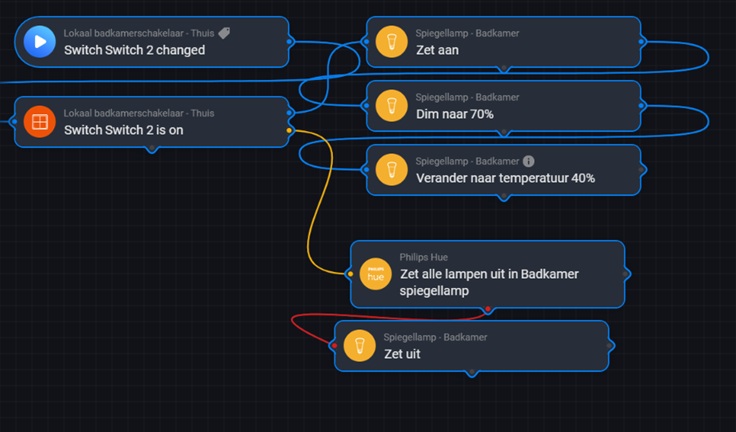
  2. Is the flow linked to the correct device? You mentioned you have 2 devices configured — make sure the flow references the same device you are pressing the button on.

Sometimes it does work. Sometimes it doesn’t or very slowly.

See: e3a60dcf-baaa-4391-8d23-03647cc8b271

I can see exactly what is happening.

Good news: The trigger IS firing correctly for both switches. The log shows switch_gang_changed fired: gang=2 multiple times.

The real problem is twofold:

1. Your polling interval is set to 1 second — this is way too fast. The device cannot keep up with 1-second polling, which causes the connection to drop and reconnect every 3–7 seconds. Please change the Polling Interval in device settings to 30 seconds (the default). Wall switches don’t need fast polling — they push state changes instantly over the LAN connection.

2. Every reconnect was firing false triggers for all switches (even unchanged ones). This is fixed in v1.0.67 (just published). The trigger now tracks each switch’s state independently, so reconnects no longer fire spurious triggers for switches that haven’t actually changed.

What to do:

  1. Update to v1.0.67
  2. Set Polling Interval back to 10-30 (in device settings)
  3. Test your flow again — triggers should now fire reliably and only on actual state changes

Thanks for the update. Maybe i miss something, but it is still a hitt or miss.

Take your time. No hurry. :wink:

See log: d8f5becf-ee82-4248-b3e2-114a504d3fa8

22:04:46 Connected
22:06:31 No data received → reconnect (1m45s)
22:09:31 No data received → reconnect (3 min)
22:16:31 No data received → reconnect (7 min)

Hi,

Thanks for the updated log. I can now see the root cause clearly — it is a device firmware limitation, not a trigger bug in the app.

Your wall switch has two problems:

1. It does not send push events over LAN. When you press a physical button, most Tuya devices immediately push the new state to Homey. Your switch does not do this. Changes are only detected when Homey actively polls the device for its current state.

2. It drops the TCP connection frequently. The log shows the connection dropping every 2–7 minutes, even with 30-second polling. This means Homey has to reconnect, and during the reconnect window (~1 second), button presses are missed entirely.

What you can try:

  1. Set Polling Interval to 5 seconds — this is the best compromise for your device. It catches button presses within 5 seconds without overwhelming the connection. 30 seconds is too slow for a switch that doesn’t push.

  2. Check the Protocol Version — your new device was auto-detected as 3.4. Make sure the old device also uses 3.4 (check in device settings). Protocol 3.4 has better keep-alive behavior on some firmware versions. Check if other versions work (set manually).

  3. Assign a static IP to the switch in your router’s DHCP settings. Frequent reconnections can sometimes be caused by IP changes.

Unfortunately there is no way for the app to force the device to send push events — this is determined by the switch’s firmware. For reliable instant triggers, you would need a switch model that supports LAN push (most Tuya switches do, but some cheaper modules do not).

Let me know how it works with 5-second polling.

Tuya Local — Major Update: 3 New Drivers, Cloud Lookup & More

Hi everyone,

Big update for Tuya Local! Here’s what’s new since the last release:


:new_button: Three New Drivers

Thermostat — The most requested addition. Supports floor heating thermostats, room thermostats, TRVs (radiator valves), and zone valves. Features include configurable mode picker (manual/auto/program), child lock, battery level for TRVs, and automatic ×10 temperature divisor detection for devices like BHT-002 and Moes.

Smart Kettle — For Tuya WiFi kettles (Anko, Aeno, Kogan and others). Temperature control, keep-warm toggle, mode picker, status display, and a “Kettle finished boiling” flow trigger so you get notified when your water is ready.

Wall Switch — Dedicated driver for 1/2/3/4-gang WiFi wall switches. Each gang gets its own tile with individual flow cards (set, toggle, trigger on change). Custom switch names configurable in device settings. Auto-detects the number of gangs during pairing.

This brings the total to 16 built-in drivers plus the Generic driver.


:cloud: Cloud Lookup (New!)

No more npx @tuyapi/cli wizard in the terminal! You can now fetch Device ID and Local Key directly inside the app:

  1. Go to Tuya Local → Settings → :cloud: Cloud Lookup
  2. Enter your Access ID and Secret from iot.tuya.com → Cloud → Project Management → your project → Overview
  3. Click Fetch Devices — done!

Bonus: Click any device name to see its full DP specification — all DP numbers, code names, types, current values, and allowed ranges. This is incredibly useful for troubleshooting and for reporting device issues.


:high_voltage: Performance & Protocol Improvements

  • Efficient polling — The app now alternates between full GET and lightweight dp_refresh requests, reducing network traffic by ~50% while maintaining the same polling interval.
  • Protocol 3.2 support — Added to auto-detection and all pairing screens. The full detection order is now: 3.3 → 3.4 → 3.1 → 3.5 → 3.2 → 3.22.
  • dp_refresh fallback during pairing — Devices that ignore the initial dp_query (like some multi-gang switches) now get a second request via dp_refresh, so their DPs are detected correctly.

:bug: Bug Fixes & Quality

  • Light driver: Fixed memory leak — debounce timers are now properly cleaned up on device deletion.
  • Fan/Humidifier/Pet Feeder: Same timer cleanup fix applied.
  • Wall Switch triggers: Fixed a race condition where flow triggers for switch 2/3/4 wouldn’t fire reliably. Also fixed spurious triggers on reconnect.
  • Pet Feeder: Fixed crash on init for devices where Homey’s capability registry hadn’t registered feed_portions yet. Extended portions picker to 1–50 (Petlibro Granary support). Auto-detection now finds indicator light and food level DPs.
  • Pairing screens: Fixed wrong default device names showing “Dehumidifier” in fan, heater, humidifier, and light pairing screens. Wall Switch now has its own dedicated pairing page.
  • Troubleshooting table: Fixed layout overflow in app settings.

:open_book: Full Documentation

The in-app help (Settings → :red_question_mark: Help) now covers all 16 drivers with DP reference tables, mode values, and troubleshooting tips. The README has been fully updated as well.


:light_bulb: Reporting Device Issues

If your device doesn’t work as expected, please use the Cloud Lookup to get the DP specification:

  1. Settings → :cloud: Cloud Lookup → Fetch Devices
  2. Click your device name
  3. Click Copy DP Table
  4. Paste it into your bug report or community post

This gives me everything I need to fix the mapping for your specific device model.


As always, feedback and bug reports are welcome on GitHub.

If this app saves you time, a small donation via PayPal is always appreciated. :folded_hands:

Andi

Hello @Andi .

Thanks a lott for looking into it. The wall switch has a fixed IP-adress of 192.168.1.95. And the version is 3.4. I changed the polling interval to 5 seconds. But there where still problems. The wall switches are from BSEED 2 gang wifi wall switches with neuterall.
It is a pity. But then i just must let it be connected to tuya cloud.

Thanks again, Andi.

P.S. to be sure i tried it with V1.0.75, but no luck.

Tx Andi for your detailed resonse!

  1. checked and correct

  2. done and every time in evert protocol when switch the heat function, the device goes offline and gets back. 3.4 seems to work best.

  3. Done, i am able to set temperature from homet, and vice versa when i set it in smart life it erports back the correct set value. However. setting heat, cool or auto. results in nothing. it goes back to heat.

    Ithink you mean this with DP snapshot?

    switch Boolean
    "{true,false}"
    
    temp_set Integer
    {
      "unit": "°C",
      "min": 0,
      "max": 40,
      "scale": 0,
      "step": 1
    }
    
    temp_unit_convert Enum
    {
      "range": [
        "c",
        "f"
      ]
    }
    
    temp_set_f Integer
    {
      "unit": "℉",
      "min": 32,
      "max": 104,
      "scale": 0,
      "step": 1
    }
    

Finally i got this work with my outdoor smart plug, except when i try power off the device.

Device goes unavailable couple of seconds and goes back to available in homey, but smart plug is still on. If i power off from device i can see from DP Debug DP 1 value change to false and of course power on the value change to true. Is there something what i can try or is problem in the APP?

Outdoor plug
DP 1 switch_1 Boolean true {}
DP 9 countdown_1 Integer 0 0–86400 step 1 s
DP 17 add_ele value 87 0–50000 step 100 kwh
DP 18 cur_current value 0 0–30000 step 1 mA
DP 19 cur_power value 0 0–50000 step 1 W
DP 20 cur_voltage value 2351 0–5000 step 1 V
DP 21 test_bit value 1
DP 22 voltage_coe value 529 0–1000000 step 1
DP 23 electric_coe value 27189 0–1000000 step 1
DP 24 power_coe value 14378 0–1000000 step 1
DP 25 electricity_coe value 2900 0–1000000 step 1
DP 26 fault bitmap 0 {“label”:[“ov_cr”,“ov_vol”,“ov_pwr”,“ls_cr”,“ls_vol”,“ls_pow”]}
DP 41 cycle_time String {}
DP 42 random_time String {}

Hi,

This is a known issue with some outdoor plugs — the device briefly drops the TCP connection when it receives a SET command, which causes the “unavailable” flash. The command itself may not be processed because the connection dies before the device acknowledges it.

Try these fixes in order:

1. Enable “Fire and Forget” mode
Go to your device → Settings → enable “Fire and Forget”. This tells the app to send the command without waiting for a response — the command is dispatched and the app doesn’t care if the connection drops immediately after. This is exactly the fix for devices that disconnect on SET.

2. Check your Protocol Version
Go to device SettingsProtocol Version. If it’s set to 3.3, try switching to 3.4. Protocol 3.4 already uses fire-and-forget internally and handles this type of device better. If it’s already on 3.4, try Auto-detect to see if a different version works more reliably.

3. Check the DP mapping
Your device uses DP 1 for the switch, which is the standard layout. Make sure dp_switch = 1 in your device settings. If it’s set to a different number, the on/off command would go to the wrong DP.

The fact that you can see DP 1 change in the DP Debug panel when toggling physically confirms the device is working correctly — it’s just the outgoing SET command that gets lost due to the connection drop.

Let me know which fix works!