[APP][Pro] NEW: Dashboard Studio - A completely free-form dashboard designer

Sorry, I was unclear in what I meant. I did notice that vertical option, but with rotate I meant the ability to basically have it upside down. So you can choose if the lowest value starts from the bottom or from the top (or left or right).

But, asking this question made me thinking if “flipping” the min/max values would also work. I tried it very quick, but I am not sure yet. It seems to work but then the slider became unresponsive after the first movement/adjustment. Maybe I just need to configure something else, but have no time now to try. Will do that this evening or in the weekend.

I am very happy with all the possibilities the Dashboard Studio provides. Will share my use case as soon it is “good enough to share” :smile:

Good catch, will be fixed next version

Can you explain this problem deeper, maybe with an example. note: you can also just type negative values in the data. Because I get correct colors using only negative data (note: Line color is fixed in this version) Edit2: Ah, you edited your comment while I had this comment in the draft. So I guess I only have to change the line color (which is already fixed in the new version)?

There are quite a few ways to position things inside the graph. The tricky part is handling the outside text. As it gets longer or shorter, everything needs to stay centered, but I really do not want the text to shift the graph itself.

The graph should always stay exactly where we put it. Otherwise, it would jump around whenever a longer timestamp or value comes in. Plus, if someone stacks multiple graph widgets, they would suddenly lose their alignment. So we have to find a sweet spot that works for any possible value. Actually, while testing this just now, I spotted a bug where the Y value squeezes the graph. It definitely should not do that, so I will get that fixed.

Anyway, maybe I should add an overall X and Y offset, but that feels a bit like a quick patch. If you want absolute pixel perfect control, here is a better trick: just make the container invisible and place it on an empty container.

Looking at your dashboard, I would actually recommend doing that for every item. The label alignment is a little mixed right now. The spacing around the borders changes quite a bit between containers. Most labels are centered, but one is on the left. The font sizes vary, and one is capitalized while the others are not.

I also noticed it looks like you are tweaking every widget individually. The best way to handle this is actually through the main settings. Every widget listens to a set of master settings in the editor. Just set the “Selected Widget” on “Dashboard Settings” (or click anywhere on the empty canvas). That way, you can set up one consistent style for everything, and then just adjust individual widgets only when you really need to.

It does not work in current version. Next version this will be implemented. Good suggestion.

1 Like

I edited my post that a full negative graph is now fixed, shows only green now (green in my case), so that’s perfect.

I have tried to do as described, but no matter what I do, it doesn’t work, the lamp is always either completely off or completely on. I have tried with Hue and Ikea

New version, V1.2.3 published to the test appstore,

The save/export filename would now correctly carry over when switching between different dashboards.

Fixed

I improved a couple of things in the Y labeling and positioning (including a setting to make the Y labeling a fixed width). And there is now a setting to offset the whole graph (section Graph Appearance):

You can now use a higher value in MIN than the MAX to reverse the slider :+1:

The label can now be rotated + / - 360 degrees :+1:

Expanded the Icon Browser to include the complete library of Phosphor Icons, and included keyword searching to help you easily find the perfect icon.

Full changelog

4 Likes

Lets do some testing:
Start by placing your two browser windows side by side: Homey on the left and Dashboard Studio on the right.

In Homey, head over to the Dashboard Studio configuration. Find the light you want to use and make sure you enable the “TURNED ON [OFFON]” capability.

Now, move over to the right window. Open the editor in Dashboard Studio and click on any empty space on the canvas to ensure the main dashboard is selected. Scroll down until you find the “Data stream explorer” and open it up.

Go back to the Homey window, navigate to your devices, and open that specific light. Try toggling it on and off a few times. While you do that, keep an eye on the “Data stream explorer” in the right window: Do you see anything happening? (and what do you see?).

That’s quick. Works perfect!

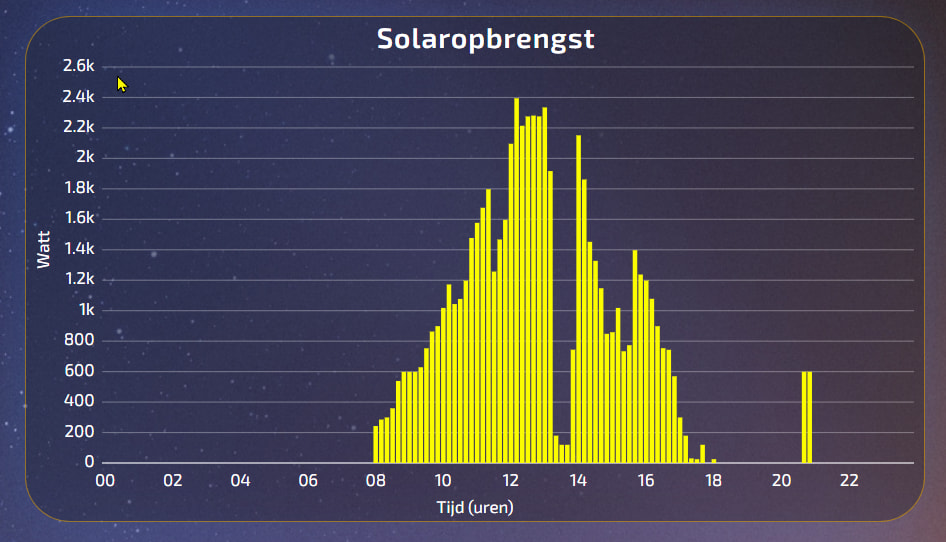
How to read the following y-axis? Setting y-axis: auto min, auto max, y-label count: 10

I have a strange issue. I can control a device perfectly with Dashboard Studio: if I change the slider the sunscreen moves to the correct location. If I adjust the sunscreen itself (by Homey or the remote) the slider in Dashboard Studio is also adjusted. So in this case everything works (by using value and output topic).

However, if I create a new number variable in Homey and sync it with Dashboard Studio and connect it to a slider I have an issue. If I adjust the value of the variable in Homey: the slider is adjusted in Dashboard Studio. But if I adjust the slider in Dashboard Studio the variable in Homey is not adjusted. So communication from Homey to Dashboard Studio works, but not from Dashboard Studio to Homey.

@Satoer Any idea if this is a bug or if I am doing something wrong?

Addition: could it be related to this one? That would mean that normal devices function correct in a bidirectional way. But that Homey variables and special homey devices (i tried virual devices, a group of devices and advanced capabilities) only work one way?

I am trying to see the problem, but can’t seem to find it? Do you mean the multiples of “2k”? I have updated the Y-axis with compact number formatting. 1000 = 1k, 1000000 = 1M… I struggled to keep the width the same if the numbers go up. But in your case I would increase the decimals resolution so it looks more like this (left) or change the Y intervals when using the smart intervals option (right):

It isn’t actually a bug; Homey variables are currently read-only. I thought I had mentioned this somewhere in the documentation, but I definitely need to make it clearer. I’ll add a note directly in the configuration settings.

I spent a lot of time trying to figure out how to write to these variables, but I couldn’t find any working examples or documentation on how to do it. Eventually, I had to give up and conclude they are read-only for now.

That said, if there is a developer here who knows the trick and can share some example code, I’d be more than happy to build it in!

Workaround is to just use a WHEN card to update the variable indirectly:

(You can bind individual topics for output and input)

Thanks, that helps!

@Satoer When make a new one, it says also “empty” @v1.2.3.

Hi @Satoer, I am trying out the button widget in the new version. The position of the icon does not yet want to stay on the right side with a short text. I expected the icon to stay fixed on the right side, but it shifts to the left when the text is short. Can you take another look at this?

I think it worked in the previous version :thinking:

Defining 1 decimal did the trick. Thank you.

I didn’t expect to have to work with decimals for large numbers in a graph. Therefore, is it always recommended to define at least one decimal?
With my NL settings, the value of the decimal place in the graph is a point.

Ok, I got this working now, nice!

I did found out that this did not work copying an existing slider and change the output topic. It kept using the old topic. But it did work when making a new slider, thnx!

Thanks

You are in the “Label & Text” section. To set the position of the switch you need to set the button alignment in the “Appearance” section:

Thanks, but unfortunately, developing a standalone app works a bit differently than HomeyScript. Apps have to deal with specific API scopes and permissions that scripts don’t. I’m sure it’s possible via the Web API, but I need to dive deeper into the implementation. I thought it had to do something with rights, but it has been a couple of month’s ago.

There are homey apps on github, maybe there is an example/ inspiration? But I hope another developer will help you, you did already so much!!

The HomeyScript app is also open source:

I was completely wrong. Thanks for all the great adjustments. It works really well!

Okay, new version. Just polished a couple of things and

I’ve tagged all capabilities as Read-Only, Write-Only, or Both within the editor and config. This directly addresses previous frustrations by making permissions clear at a glance.

If no other real problems arise today I am going to submit this version for certification.

Thanks, ill look in to that.

3 Likes