Adjusting the phone font size fixes that, but then the rest of the phone text is too small. It would be great if the widgets had a property for font-size, or perhaps font-size-adjust-percent.
You can see font-size is a generic issue - the sensors widget cuts off the value - I have a question into Athom about that.
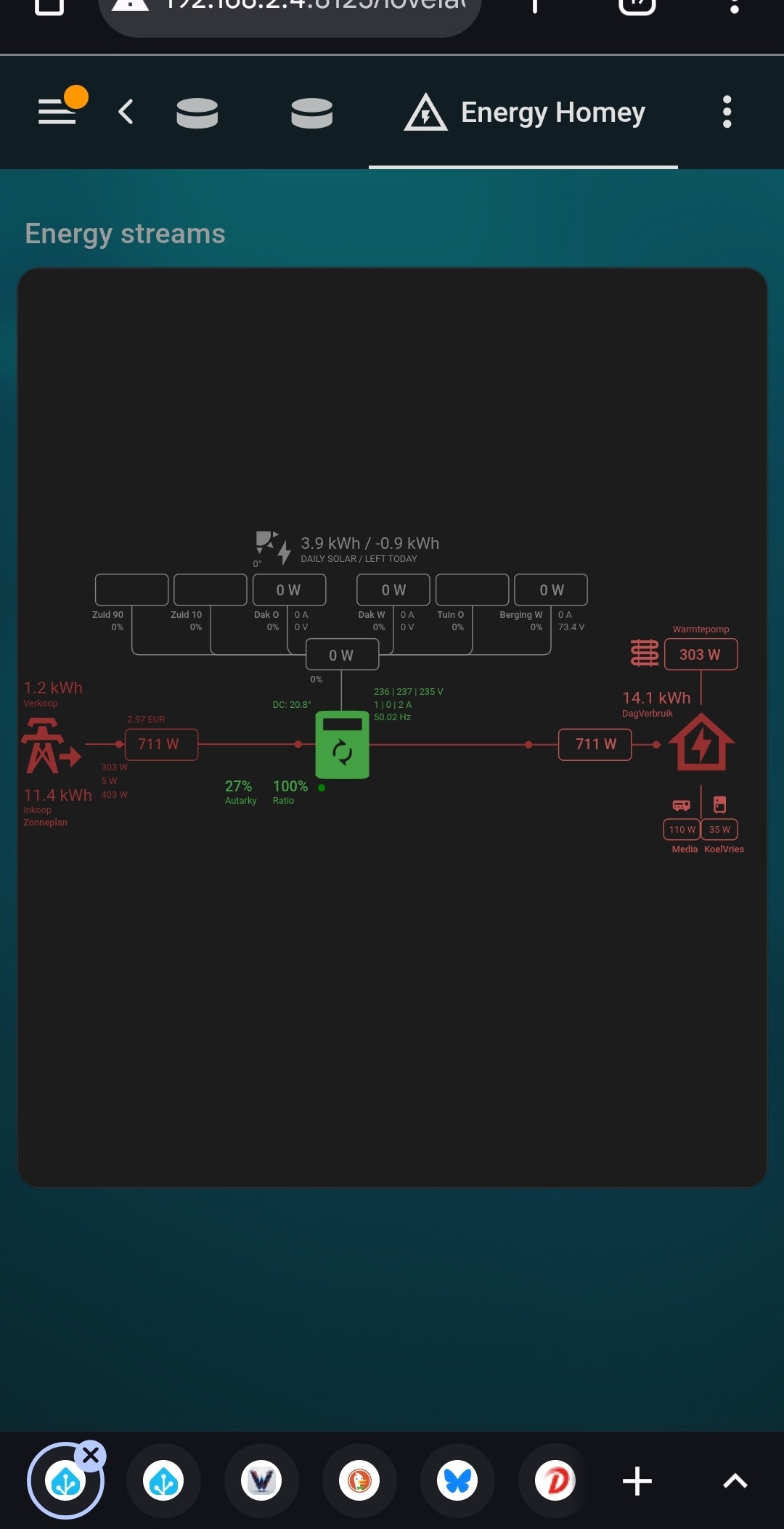
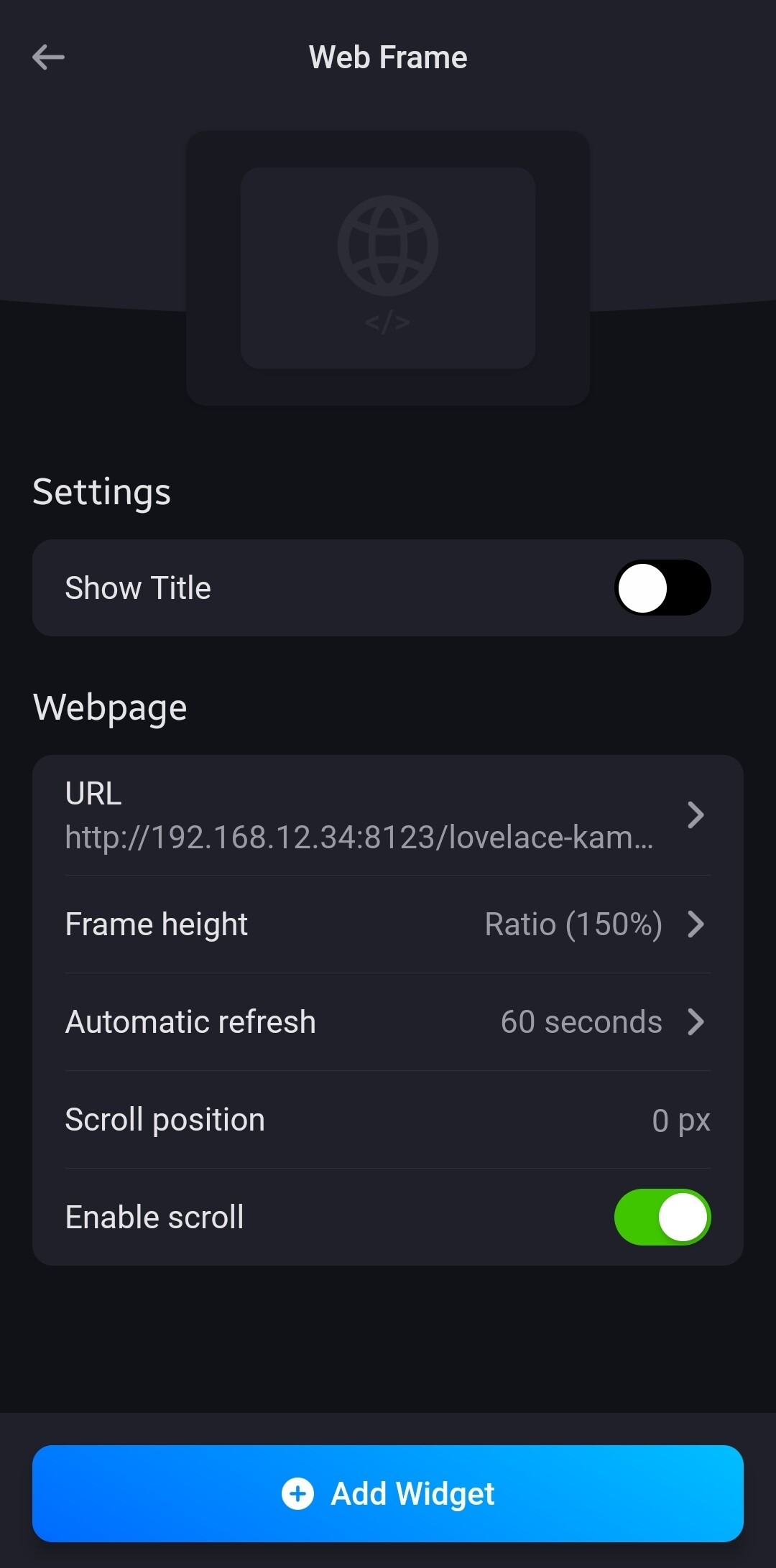
Yeah, you can add HA components using the web frame widget.
In short:
I create a separate 1 column dashboard for the components I like to add to Homey dash;
The URL of that dashboard is entered in the web frame widget.
H.A.
Create separate dashboard,
set max columns to 1
copy the URL
I have the same problem, text fields don’t update in the widget.
In the device (Advanced Capabilities) the text field is updated from changed BLL-variable or from $values.join of device variables. The widget wont update unless refresh of the dashboard. If the widget’s edit mode is enabled it also works when toggling Edit.
The app registers capability hooks to be notified when a capability changes. Maybe it’s not getting notifications from those capabilities or maybe the notifications format is unexpected.
Could you open the app settings page and set the log level to All Information. Then when the text value changes, check if it appears in the log. If it does then tapon Send Log and I will check the format.
Ok, log sent.
Another thing with the text field in the widget is that it is one row below the label. Doesn’t really matter but maybe that is related to why the value is not updating. See attached screenshot.
In my case the text fields from my ‘Device capabilities’ devices are reflected by the status change of other devices or BLL variables. Maybe that does make a difference?
Ok, software testing used to be my profession before retirering, I will test different scenarios and let you know what I find out. But first New Year celebrations.
How do you guy’s create a nicely outlined widget ? Table & tr do not work, it leaves a enormous gap in the upper part of the widget, and even if i add   like crazy, the numbers in the second row don’t line out..
You need to define a tabel (<table>...</table>), with rows (<tr>...</tr>) and columns/cells (<td>...</td>).
To eliminate the extra blank rows at the top of the widget, make sure to remove any ‘returns’, line breaks and tabs between tags in your HTML code, included by your HTML editor. Or maintain the HTML code manually directly in the advanced flow (instead of in an HTML editor).
Regarding column widths:
For my status widgets I am using the following styling, which maximizes the available space: table {table-layout: fixed; border-spacing: 0px; width:100%;}
When using the table-layout: fixed option, the column width you set on each cell in the first row of your table (e.g. via the style="width:20%" statement), is leading for the whole table. Alternatively, you can set a column group with the width of each column after the table definition (e.g. <colgroup><col style="width:20%;"><col style="width:80%;"></colgroup>).
Ok thanks, will try again… But adding/edding code in the flow card is not easy. And when done in notepad (my HTML editor ) it’s hard to enter the Tags and Variables..
Haha yes, I know . Just consider it part of the learning experience .
You start small and simple, and then add to it and suddenly it has become complex and the unformatted code looks like spaghetti…
I restructured my HTML-code and flows several times to simplify the contents of the flow cards and create reusable parts. Also there are multiple ways to achieve the same in HTML and - since I am learning on the fly - it causes some rework.



 ) it’s hard to enter the Tags and Variables..
 .
.


 . Just consider it part of the learning experience
  .
.
